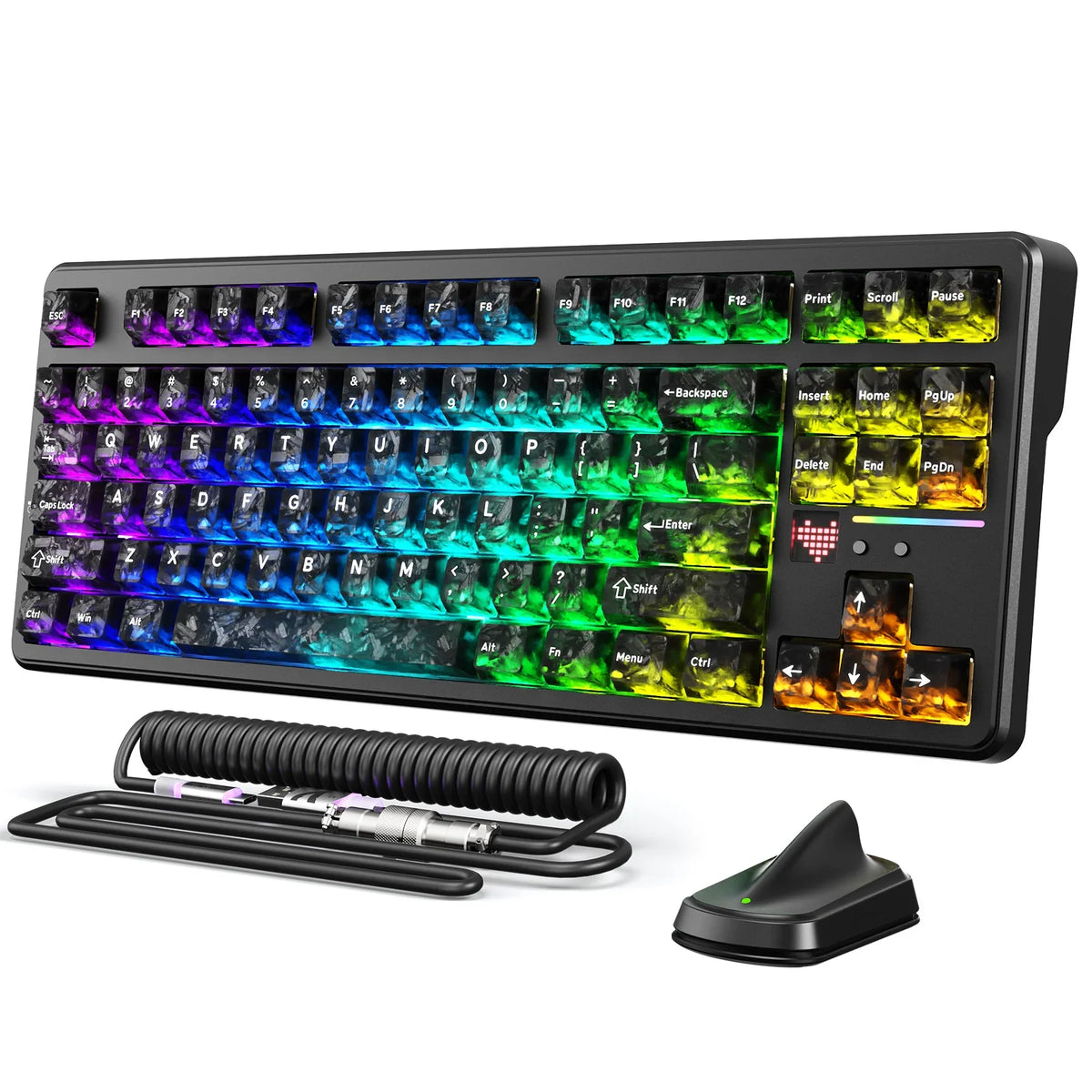
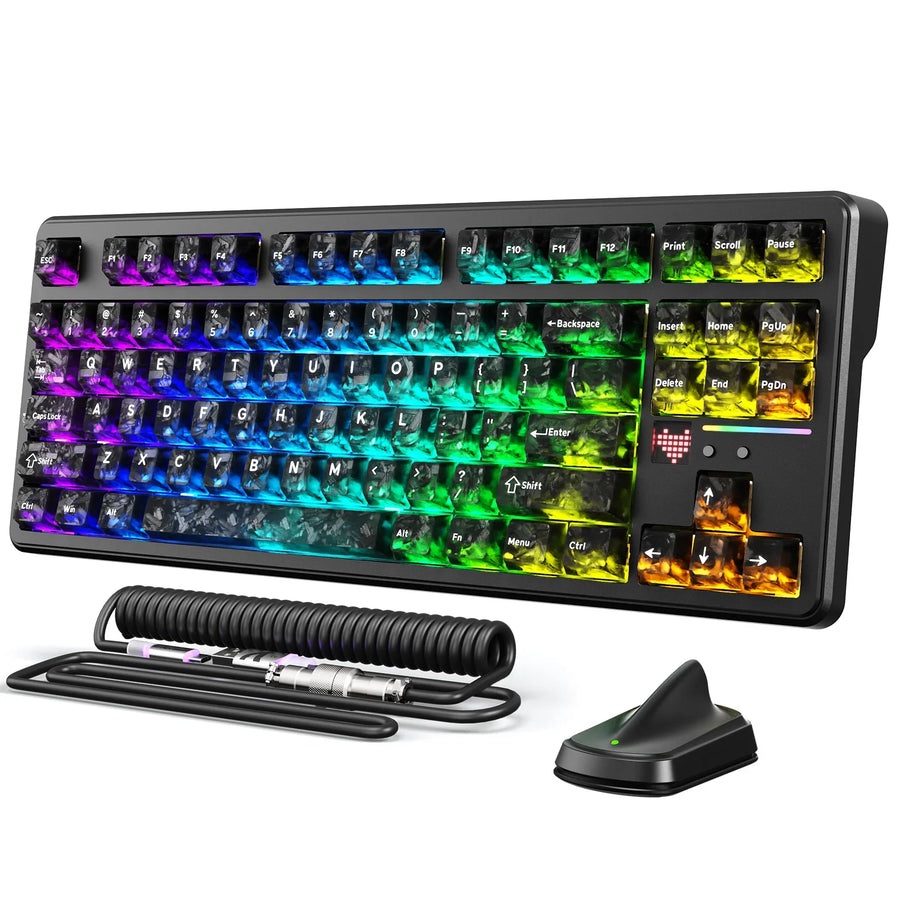
For a dual setup that splits gaming and office work between two computers, pairing a versatile bluetooth mechanical keyboard across both hosts requires assigning the right mode to each machine: run the gaming host on 2.4GHz when the keyboard documents a mode-specific polling rate for that connection, and put the office or secondary host on Bluetooth 5.0 when convenience and a stable pairing matter more than raw response time. Bluetooth 5.0 is a connection generation, not a latency measurement, so a keyboard's advertised polling figure only applies to the mode it was tested in.
Switching friction is a separate question from connection speed: pairing, saved device channels, reconnection, and profile loading each behave differently depending on the exact keyboard. The sections below cover the mode-by-host decision, how to read latency claims, real dual-setup configurations, and a troubleshooting order for lag that will not go away.
Key Takeaways
- Assign connection modes by host and task: 2.4GHz for the latency-sensitive gaming PC when its mode-specific polling is documented, Bluetooth 5.0 for the secondary host when stability and convenience matter more.
- An advertised polling rate or a Bluetooth 5.0 label is not itself an end-to-end latency measurement; check the connection mode and test scope before trusting the number.
- Pairing, saved device channels, reconnection, and profile loading are four separate behaviors; test each one with repeated host switches before calling a setup frictionless.
- When lag appears, isolate the connection mode and host path first, then check receiver placement, power, settings, and exact-model documentation last.
2.4GHz or Bluetooth 5.0: Which Connection Should Run Each Host?
Assign the gaming computer to the connection with documented mode-specific performance, and give the secondary computer whichever mode it supports most reliably. Neither the Bluetooth 5.0 label nor an unspecified polling number proves how fast either mode actually is for your exact keyboard.
Use 2.4GHz for the latency-sensitive host when its mode is documented
2.4GHz over a USB receiver is the first mode worth checking for a gaming PC, but only when the exact keyboard publishes a mode-specific polling rate or an independent latency test for 2.4G. A Bluetooth 5.0 badge on the box does not carry the same weight, because the Bluetooth specification leaves performance details to each manufacturer rather than guaranteeing one report rate. Before committing to 2.4G for gaming, confirm two things: the host has a free USB port for the receiver, and the connection stays stable at your actual desk distance and orientation. If the receiver has to compete with other 2.4GHz devices or sit far from the keyboard, the mode's documented advantage will not show up in practice.
Use Bluetooth for the secondary host when convenience wins
Bluetooth earns its place on the second computer when that machine has no spare USB port for a receiver, or when you would rather not manage a second dongle. It works well for typing, browsing, and general office tasks as long as the connection stays stable once paired to your specific keyboard and laptop combination. Do not use this convenience case as a reason to move the gaming host to Bluetooth too. If both tasks demand fast response, keep the better-documented mode on the gaming computer and accept Bluetooth only where responsiveness is a lower priority.
| Factor | 2.4GHz | Bluetooth 5.0 |
|---|---|---|
| Evidence available | Mode-specific polling or latency claims possible when documented | Connection generation label; no universal performance guarantee |
| What the claim means | Applies only to the tested mode | Confirms pairing standard, not report rate or delay |
| Host requirement | Free USB port, receiver near keyboard | Bluetooth radio on host, no receiver needed |
| Likely dual-setup role | Gaming PC when documented | Secondary or office host |
| Condition that changes the choice | Unstable receiver or no free USB port | Unstable pairing at your desk |
Use this table to place each host, then treat any specific keyboard's numbers as a starting point that still needs verification in your own setup.

Polling Rate Is Not the Same as End-to-End Latency
Polling rate tells you how often a keyboard can send a report to the host; it does not tell you how long a keystroke takes to reach the screen. Treat any maximum figure as a specification tied to one connection mode, not a finished latency result.
What polling rate can and cannot tell you
A polling rate describes report frequency, the pace at which the keyboard is allowed to update the host with new key states. It says nothing on its own about the complete path from switch actuation through the keyboard's processing, the wireless link, and the host's software stack. A keyboard that advertises a high maximum polling rate for one mode, such as a wired or 2.4G receiver connection, has not proven the same number for Bluetooth unless the documentation says so directly. Treat the Bluetooth version number the same way: 5.0 identifies a pairing and power standard, not a keyboard-specific delay. For more on why report frequency matters to competitive play, see our keyboard scanning rate explainer.
How to read a credible latency result
Before trusting any latency claim, check three things in order:
- Connection mode: confirm whether the number applies to wired, 2.4G, or Bluetooth, since a figure from one mode does not transfer to another.
- Measurement scope: confirm whether the test covers the full path from key actuation to computer receipt, or only the wireless report timing, which leaves out other delays.
- Test conditions: confirm settings, firmware version, host device, and battery or power state, since any of these can shift the result away from a marketing figure.
A claim that skips all three checks is not enough to base a gaming setup decision on.
Switching Hosts Without Rebuilding the Setup
Switching between two hosts involves four separate behaviors, and supporting several connection modes does not prove any of them work smoothly. Check pairing, saved channels, reconnection, and profile loading on your exact keyboard before calling the workflow convenient.
Pairing, device slots, and reconnection are separate checks
- Pairing connects the keyboard to a host for the first time; selecting a previously saved channel afterward can be a different action, sometimes a button combination and sometimes automatic.
- Reconnecting after sleep, a mode change, or walking away from the desk can add a noticeable delay even when the original pairing was effortless.
- Supporting three connection modes does not tell you how many device slots the keyboard stores or how it behaves when you try to add a fourth host.
Host switching is not automatically profile switching
Changing the active host moves where your keystrokes go; it does not automatically change lighting, key remaps, or other saved settings unless the manual says the two are linked. Some keyboards tie a profile to each connection channel, and others keep one profile across every host. Confirm this in your exact model's documentation rather than assuming a channel switch will also reset macros or RGB behavior. Test both actions separately: switch hosts once, then check whether your remaps and lighting followed.
Run this before trusting the workflow daily: switch hosts, wait a few seconds, type a short phrase, then switch back and repeat three times. If any cycle needs re-pairing instead of a simple channel change, treat the setup as still in testing.
Dual-Setup Configurations That Minimize Friction
Two layouts cover most gaming-and-office setups: a receiver-based gaming PC paired with a Bluetooth office laptop, or two Bluetooth hosts when a receiver is not practical. Pick based on which computer truly needs the faster, better-documented mode.
Gaming PC plus Bluetooth work laptop
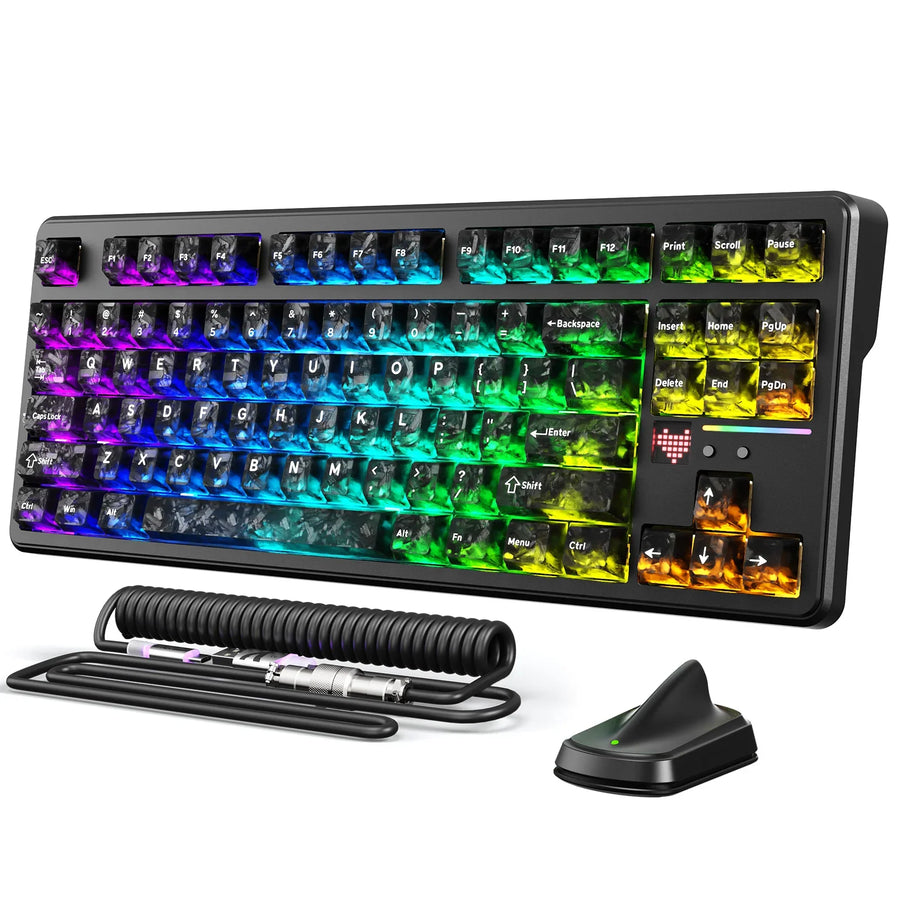
This layout puts the gaming computer on 2.4G through its receiver and leaves the work laptop on Bluetooth. The X87 ULTRA connection modes page lists 2.4G, Bluetooth 5.0, and wired USB-C together with an advertised polling rate up to 8,000Hz; that figure describes the receiver mode and is not established as a Bluetooth result, so keep the gaming PC on 2.4G rather than assuming Bluetooth matches it. Confirm the receiver stays stable at your desk before relying on it daily, and test returning to the gaming host after a work session rather than checking only the first pairing.
Two Bluetooth hosts when receiver use is not practical
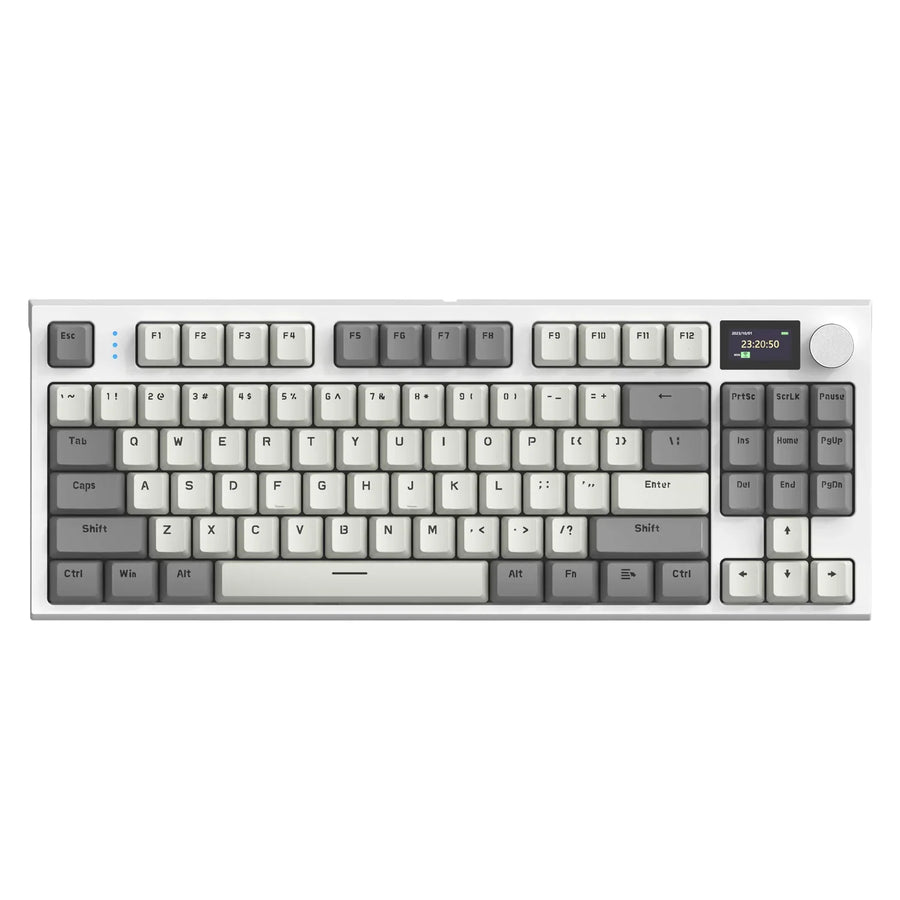
When neither computer has a spare USB port, or you would rather not manage two receivers, pairing both hosts over Bluetooth is a workable convenience-first option. The K86 connection modes page documents 2.4G, Bluetooth 5.0, and wired USB-C connectivity and lists both gaming and office among its intended uses, though it does not publish device-slot counts or reconnection timing. Before relying on this layout, confirm that channel selection between the two hosts is repeatable and that reconnection after sleep does not need a fresh pairing each time. Treat this setup as a convenience choice, not a substitute for a measured receiver-based gaming connection.

Prioritized Troubleshooting for Input Lag
Start troubleshooting by isolating the connection and host path before touching software or hardware. Work through the stages below in order, since later steps matter only if the earlier ones do not explain the lag.
- Reproduce and isolate the mode: notice whether the lag happens right after switching hosts, only on Bluetooth, only on 2.4G, or on both, and test a wired connection if available to rule out the wireless link entirely.
- Check receiver placement and interference: move a 2.4G receiver closer to the keyboard and away from USB hubs, monitors, or other 2.4GHz devices, since crowded radio space can slow a connection that tested fine elsewhere.
- Check battery or power state: a low battery can cause a wireless keyboard to throttle its report rate or drop connection briefly, so charge or replace the battery before ruling out the hardware.
- Check settings and software detection: confirm the host recognizes the keyboard correctly and that any keyboard software or driver has detected the device, since a missed detection can look like lag even when the wireless link is fine.
- Verify exact-model documentation or support: once mode, placement, power, and software are ruled out, check your exact keyboard model's manual or support page for a known issue or firmware update before assuming the unit is defective.
FAQs
How can I tell whether the problem is switching friction or ongoing input lag?
A delay that appears exclusively on the initial keystroke after switching hosts points to channel negotiation or reconnection rather than ongoing transmission lag. When sluggishness persists across continuous typing on a single host, treat it as active input lag and isolate your wireless path, power level, and receiver environment. You can confirm the root cause by repeating the switch test three times and noting whether the stall is strictly isolated to that first press.
Why does a Bluetooth mechanical keyboard lag when waking up from sleep?
Power-saving timers turn off the internal wireless transmitter during idle periods, requiring the keyboard to establish a fresh handshake with your operating system when you press a key. This brief wake-up handshake often drops or delays that opening stroke, which differs completely from continuous input latency during active use.
Does multi-device pairing let you switch between two computers instantly?
Multi-device pairing stores credentials for multiple hosts, but switching channels still requires the keyboard firmware to disconnect from the active host and complete an operating-system handshake on the second. Depending on receiver proximity, host Bluetooth stacks, and background interference, this channel swap typically involves a short settling delay rather than instant, zero-millisecond input transfer.