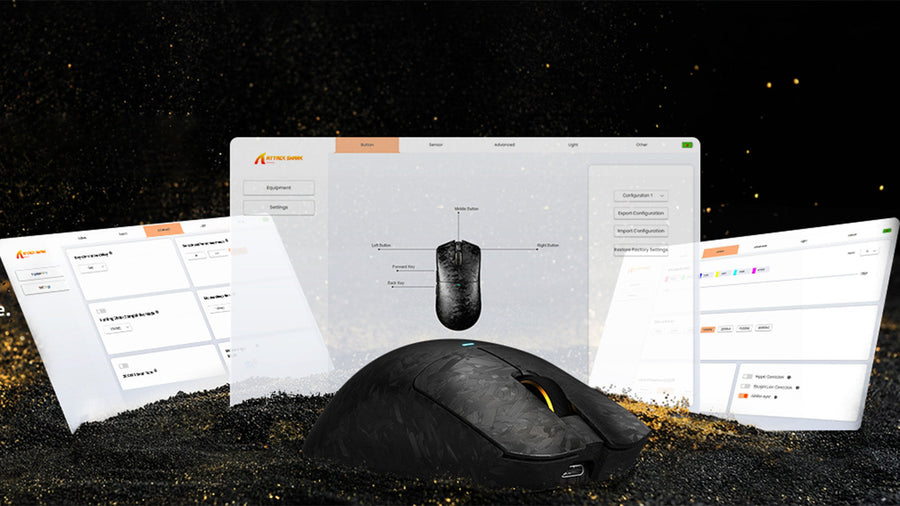
When your gaming gear starts lagging or missing inputs, hardware failure might not be the issue. Often, the internal software running the device simply needs a refresh. Knowing exactly how to safely install these updates prevents bricked hardware and unlocks hidden performance features. This guide explains why you should maintain your devices and shows you exactly how to execute a safe update process for your entire gaming setup.

Why Do You Need to Update Gaming Peripherals Firmware?
Hardware manufacturers constantly discover bugs and develop performance improvements long after a product hits the shelves. When you decide to update gaming peripherals firmware, you are directly rewriting the core code physically stored inside your device's memory. This differs entirely from the software running on your computer.
Firmware controls the physical hardware operations, like sensor tracking algorithms, wireless connectivity stability, mechanical switch debouncing, and battery management. If your wireless mouse disconnects randomly or your keyboard registers double keystrokes, the manufacturer usually fixes these hardware-level glitches through a firmware patch.
Furthermore, new games and operating systems demand modern hardware standards. When you update gaming peripherals firmware regularly, you ensure your older hardware remains compatible with new software environments. Ignoring these updates leaves your hardware underperforming, limits your RGB customization options, and leaves your device susceptible to known bugs. Understanding firmware as low-level embedded code — distinct from regular software — is essential for every gamer managing their setup long-term, as outlined in this firmware update guide.

Learn How to Update Mouse Firmware Safely
Upgrading the code stored directly on your hardware carries slight risks. If the flashing process is interrupted, the device can "brick," meaning it becomes completely unresponsive. Therefore, understanding exactly how to update mouse firmware safely is crucial to protecting your investment.
Connect via USB Cable
Never attempt a firmware upgrade over a wireless connection. Wireless signals can drop or suffer interference, causing incomplete data transfers. Always plug your mouse directly into the motherboard's USB port on the back of your computer. Avoid using USB hubs, monitor pass-throughs, or front-panel ports, as these can cause voltage drops. Power interruption during a flash is one of the leading causes of bricked devices, a risk documented in firmware cybersecurity research.
Close Background Applications
Close any unnecessary software, especially other hardware monitoring tools or conflicting peripheral software. These background programs can interrupt the manufacturer's dedicated software during the sensitive flashing process.
Do Not Unplug or Power Off
Once you click the install button in your manufacturer's software hub, do not touch the mouse. Do not unplug the cable, and ensure your computer is plugged into a stable, uninterrupted power source. Following these strict rules is the best method to master how to update mouse firmware. Once the software confirms a successful flash, you can unplug the cable and safely return to wireless mode.
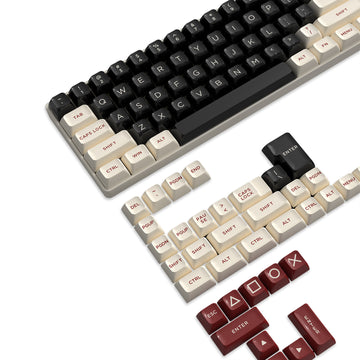
Install the Correct Keyboard Driver for Your Device
While firmware lives inside the keyboard's internal memory, the driver lives on your computer's operating system. The driver acts as the primary translator between your physical hardware and Windows or macOS. Without the correct keyboard driver installed, your computer will only recognize the device as a generic input tool. This means you will lose access to custom macro keys, advanced RGB lighting control, and custom actuation point settings.
Always download your keyboard driver directly from the manufacturer's official website or their dedicated software hub. Windows Update sometimes installs basic drivers automatically, but these generic versions lack advanced gaming features and fast response times.
If you are switching from one brand to another, uninstall the old keyboard driver first. Having multiple control software programs running simultaneously often causes macro failures, double-typing issues, and system crashes. Ensuring you have the correct, manufacturer-specific keyboard drivers installed guarantees that your operating system processes your keystrokes with absolute zero latency.
Fix Bugs and Lag by Updating Your Mouse Driver
Sensor stuttering and cursor lag will ruin any competitive gaming experience. Often, the physical hardware is perfectly fine, but an outdated mouse driver causes communication bottlenecks between the optical sensor and the game engine. An outdated driver might fail to process high-speed sensor data correctly, resulting in noticeable input delay.
Sometimes, Windows applies a generic HID-compliant driver over your manufacturer's specific software. To fix this, open the Device Manager, locate your pointing device, and verify the driver details. If you see generic Microsoft software listed instead of your brand's name, you must manually install the official mouse driver provided by your peripheral manufacturer.
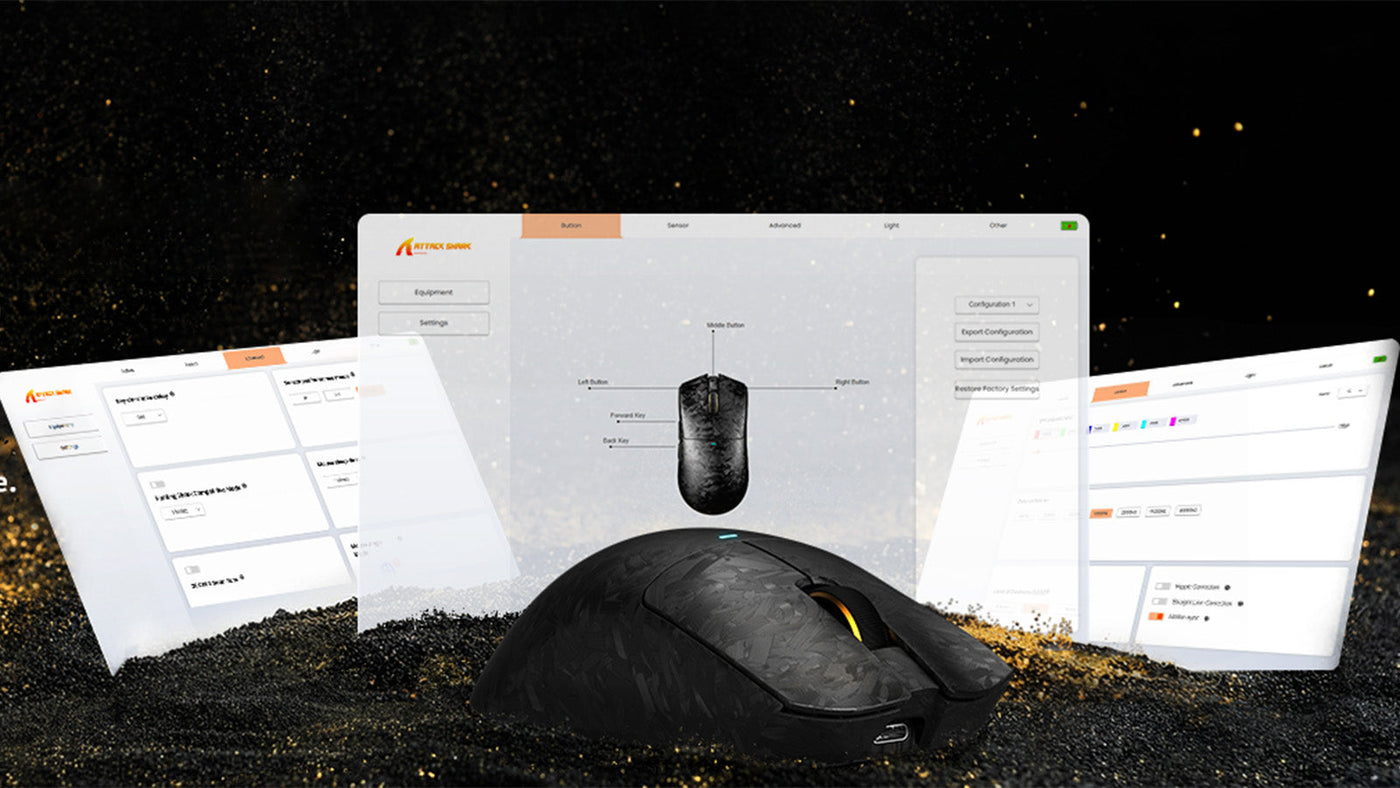
Most modern gaming mice do not use standalone driver files anymore. Instead, the driver is bundled within the manufacturer's central software application. Keeping this central hub updated ensures your mouse driver remains current, patching out software-level bugs and improving hardware compatibility with the latest Windows operating system updates.
Change Mouse Polling Rate After a Firmware Update
Manufacturers frequently release firmware updates specifically to unlock higher performance thresholds. For example, a recent update might allow your wireless mouse to jump from a standard 1000Hz reporting rate up to 4000Hz or even 8000Hz. However, this hardware capability does not activate automatically. You must manually change mouse polling rate settings within the software after the flash is complete.
What is Polling Rate?
The polling rate determines how many times per second your mouse reports its physical position to the computer. A 1000Hz rate reports every 1 millisecond. Upgrading to a higher rate provides incredibly smooth cursor movements on high-refresh-rate gaming monitors.
How to Adjust the Settings
Open your peripheral software and navigate to the performance or sensor tab. Here, you can change mouse polling rate to match your monitor's capabilities. Be aware that higher polling rates consume significantly more CPU power and drain wireless batteries much faster. If you experience game stuttering or frame drops after an update, you may need to adjust your polling rate back to a standard 1000Hz until you upgrade your computer's processor.
Troubleshoot Corrupted Firmware or Driver Issues
Sometimes, even when you know how to update mouse firmware correctly, power fluctuations or background software conflicts can corrupt the installation. If your device stops responding entirely after an update, you must perform a hard reset.
Reinstalling Drivers
A corrupted update often breaks the communication link between the device and the operating system. First, open your computer's Device Manager and uninstall the corrupted keyboard driver or mouse driver. Disconnect the device from the USB port, restart your PC, and plug it back in to force Windows to install clean, baseline keyboard drivers.
Hardware Reset Combinations
Many modern peripherals feature physical reset combinations. Holding down specific mouse clicks or keyboard keys while plugging in the USB cable can force the device into a recovery bootloader mode. This mode allows you to attempt to update gaming peripherals firmware a second time to overwrite the corrupted data safely.
Software Reconfiguration
Once the firmware is successfully restored and the software is functioning, verify your device settings. A hard reset usually wipes all onboard memory profiles. You will need to remap your macros, reset your RGB lighting profiles, and change mouse polling rate back to your preferred competitive settings.
Conclusion: Keep Your Gear Updated, Keep Your Edge
Maintaining your gaming setup requires more than just keeping the keycaps clean. Routine software and hardware updates are essential for optimal performance, system stability, and device longevity. By taking the time to carefully install manufacturer updates and manage your drivers, you eliminate input lag and unlock advanced features. Always follow safety precautions during installation, and routinely check your software hub to ensure your hardware operates flawlessly.
FAQs
Does updating firmware delete my custom macros?
Yes, sometimes a major hardware flash will wipe the device's onboard memory. It is highly recommended to export and save your profiles within the manufacturer's software before proceeding with the upgrade. Once the update finishes, you can safely re-import your macros, DPI steps, and custom lighting profiles.
Can I update my keyboard or mouse on a Mac?
Many gaming brands design their primary software hubs exclusively for Windows. If your peripheral software does not natively support macOS, you may need to plug your device into a Windows PC, run the process to update gaming peripherals firmware there, and then plug it back into your Mac. The internal hardware changes will carry over regardless of the operating system.
Why does my mouse feel different after an update?
Updates frequently adjust underlying sensor tracking algorithms or alter lift-off distance calculations to improve accuracy. If the tracking feels too fast or unresponsive, open your software hub and verify your settings. You may need to readjust your polling rate or DPI levels back to your standard preferences, as major updates sometimes revert these settings back to factory defaults.
Is it necessary to update my drivers if my device works fine?
If your setup performs flawlessly and you play competitively, skipping minor software updates is generally acceptable to maintain muscle memory. However, you should periodically check for major keyboard drivers or mouse driver updates. Developers frequently patch critical system vulnerabilities or resolve newly discovered compatibility issues that arise following major Windows OS updates.