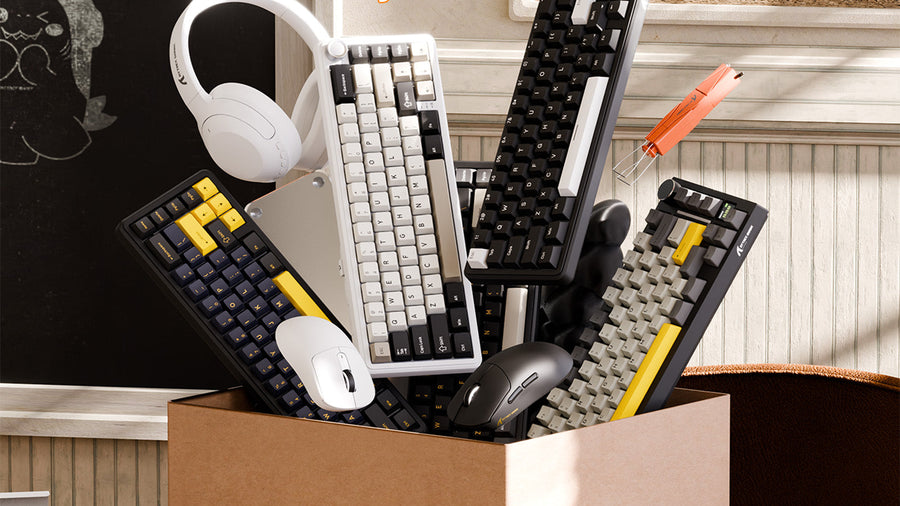
A $500 budget can noticeably improve your gaming setup when you already own the PC or console, desk, and basic display. The right plan depends on what currently limits the experience. That may be an uncomfortable chair, a slow monitor, poorly fitting peripherals, or unclear audio. By identifying that problem first, you can divide the budget between performance, comfort, and useful accessories without wasting money on upgrades you will barely notice.
Decide What Your $500 Gaming Setup Includes
This guide treats $500 as an upgrade budget, so it does not include the gaming PC or console. The monitor is optional because some users already own a suitable display, while others need to make it their largest purchase.
Test your current setup during the games you play most. Note when aim feels inconsistent, the display looks choppy, voice chat becomes unclear, or your sitting position becomes uncomfortable. Keep equipment that still works well and direct the money toward the problems that occur regularly.
The following three plans show how the same budget can serve different priorities. Each figure is an example allocation rather than a fixed retail price.
| Category | Balanced Plan | Display-First Plan | Comfort-First Plan |
|---|---|---|---|
| Monitor | Use Existing | $180 | Use Existing |
| Chair and Ergonomics | $220 | $100 | $300 |
| Keyboard and Mouse | $110 | $100 | $90 |
| Headset or Audio | $60 | $50 | $40 |
| Mousepad, Cables, and Lighting | $80 | $50 | $50 |
| Budget Reserve | $30 | $20 | $20 |
| Total | $500 | $500 | $500 |
Choose the balanced plan when several parts of your desk need moderate improvement. The display-first plan suits a PC or console that can produce more frames than the current monitor can show. The comfort-first plan makes more sense when poor seating ends your sessions before the hardware causes problems.
Keep the reserve until you have checked shipping, taxes, cables, adapters, and mounting requirements.
Set a Practical Keyboard and Mouse Budget
For this type of $500 gaming setup, allocate approximately $90 to $130 for the keyboard and mouse combined. FPS players may spend more on mouse fit and a consistent mousepad. People who share the desk between gaming, work, and study may place more value on the keyboard.
Choose a Keyboard That Fits the Desk
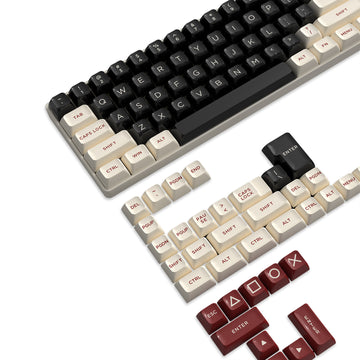
Start with the keys you use and the amount of mouse space available. A TKL or 75% layout keeps many familiar keys while using less width than a full-size board. A 60% or 65% keyboard creates more mouse room but moves some commands behind function layers.
A compact keyboard only helps when its exact dimensions leave a usable mouse lane. Apply the same keyboard-size checks to the width, depth, cable path, and keys you need before choosing a layout.
Switch choice should follow your preferred feel and acceptable sound level. Linear switches often feel smooth, but their sound depends on the switch, case, keycaps, internal dampening, and typing force. Hot-swappable sockets are useful if you expect to change switches later, while Hall Effect features are more relevant to players who want adjustable actuation or rapid trigger.
Choose Mouse Fit Before Maximum DPI
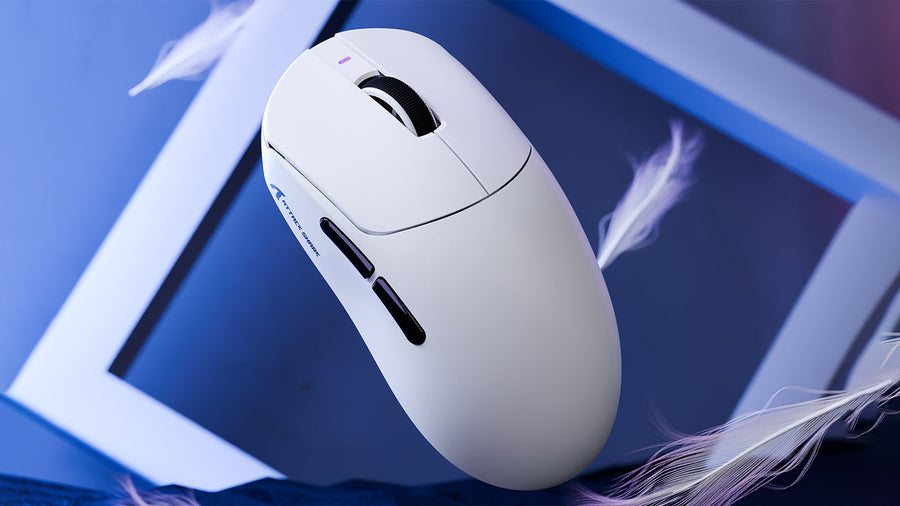
A reliable sensor matters, but maximum DPI alone says little about how a mouse will feel during play. Compare the shell length, width, hump position, side-button location, and grip support with your hand size and grip style.
A lighter mouse requires less force to start and stop, which can suit fast FPS movement. Some players prefer more weight for stability. Treat weight as a personal control preference rather than a universal performance rule.
For wireless competitive gaming, prioritize a documented 2.4GHz gaming mode. Bluetooth is useful for work and mobile devices but usually serves a different purpose. A stable 1,000Hz polling rate covers many gaming setups. Higher rates become more relevant when the game, CPU, frame rate, and high-refresh display can make use of the additional updates.
Once you know the layout, mouse shape, connection, and spending limit, a gaming peripheral comparison can help you narrow the available combinations.

Upgrade the Monitor When It Limits the System
Reserve approximately $150 to $200 for a monitor when the current display cannot show the performance your PC or console produces. A higher refresh rate can make movement look smoother when the system delivers suitable frame rates, but the monitor still needs to match your preferred games and graphics settings.
Compare four factors together:
- Resolution: Higher resolutions produce a sharper image but require more graphics performance.
- Refresh rate: Higher refresh rates are most useful when the system can supply enough frames.
- Connection: The monitor, source device, port, and cable must support the selected resolution and refresh rate.
- Desk fit: Include stand depth, viewing distance, and available width.
For competitive games, a responsive 1080p display may offer a better balance than a higher-resolution monitor that forces the system to run at lower frame rates. Story-driven games and mixed work use may place more value on resolution and image quality.
Keep an existing monitor that already matches your system and games. The saved money can fund a better chair, more suitable peripherals, or clearer audio.
Choose Audio for Your Devices and Communication Needs
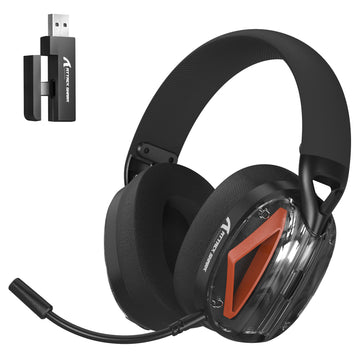
Allocate approximately $40 to $70 for audio in a balanced setup. A gaming headset is usually the simplest option because it combines game sound and voice chat in one device. IEMs provide a lighter in-ear alternative, but directional detail varies by model, tuning, fit, and the game’s audio design.
Check the connection before comparing extra features. A wired headset avoids charging, while a 2.4GHz wireless model provides greater movement around the desk. Bluetooth can be useful for phones and casual listening, although supported modes and latency differ between products.
Comfort also depends on more than listed weight. Ear-cup space, clamp pressure, headband contact, padding, and adjustment range all affect long-session use. For wireless models, compare battery figures under similar volume and lighting conditions and check whether wired use remains available during charging.
A separate microphone becomes worthwhile for streaming, recording, or frequent calls. Most players can begin with a clear headset microphone and upgrade after they identify a specific voice-quality limitation. Match every connection and receiver to your devices using the relevant headset compatibility checks.

Improve the Chair and Desk Position
Set aside $200 to $300 when seating is the main weakness. A supportive office chair can work as well as a gaming-style chair when it fits your body and provides the adjustments you need.
Check whether your feet rest firmly, the seat edge avoids pressure behind your knees, and the backrest supports your normal sitting position. Armrests should let your shoulders stay relaxed while keeping the keyboard and mouse within comfortable reach.
Used and refurbished office chairs can provide better adjustment within a limited budget. Inspect the gas lift, casters, tilt mechanism, upholstery, and adjustment controls in person when possible. If the current chair remains comfortable and stable, spend the money elsewhere.
Chair height and desk position need to work together. Keep your elbows near your body and your forearms roughly parallel with the floor. OSHA’s computer workstation guidance also places the top of the monitor at or slightly below eye level and recommends enough desk space to keep the keyboard and mouse within easy reach.
Add Wrist Support Only When It Fits the Keyboard
A wrist rest can bridge the height between the desk and a tall keyboard. It should support the heel of the palms during pauses without forcing the wrists upward or pressing against them while typing.
Match its width and height to the keyboard. A thick rest may create an awkward angle beside a low-profile board, while a narrow one may leave the hands unevenly supported.
Material mainly changes feel and maintenance. Acrylic is firm and easy to wipe clean. Foam feels softer but can compress with use. Fabric may feel less slippery but usually needs more cleaning. Wood and bamboo provide firm support with a warmer surface.
A wrist rest cannot correct a chair or desk set at the wrong height, so adjust the full workstation before adding one.
Leave Lighting and Cable Management Until Last
Cable management usually needs only $15 to $30. An under-desk tray, reusable ties, and adhesive anchors can clear the work surface while keeping charging cables accessible. Plan separate paths for power cables and accessories you frequently unplug.
Position wireless receivers away from large metal obstructions and keep them reasonably close to their devices. A suitable extension cable may help when a receiver performs poorly in a crowded rear PC port.
Use the remaining accessory budget for lighting only after the monitor, chair, controls, and audio meet your needs. Place adjustable ambient lighting beside or behind the display and keep reflections away from the screen. Existing lamps may already solve the problem, leaving more money for equipment that affects every session.

Buy the Setup in Two Passes
Start with the two upgrades most likely to improve daily use. This could mean a chair and keyboard, a monitor and mouse, or a headset and better desk arrangement. Test those changes during several normal gaming sessions before spending the rest.
Use the second purchase pass for remaining problems, cable routing, a mousepad, wrist support, or lighting. This approach also gives you time to compare prices and prevents one large order from filling the desk with equipment that solves the same problem twice.
FAQs
Q1. Can Laptop Gamers Use the Same $500 Setup Plan?
Yes. Laptop users can follow the same budget structure, although an external monitor, laptop stand, and USB hub may require part of the accessory budget. Confirm that the laptop’s ports support the monitor’s intended resolution and refresh rate before purchasing.
Q2. Should You Upgrade PC Components Before Buying New Peripherals?
Upgrade the PC first when it cannot run your games at acceptable settings or maintain stable frame rates. Choose peripherals first when the games already run well and the main problems involve control, display quality, audio, comfort, or desk space.
Q3. Should a Controller Be Included in the $500 Budget?
Include a controller if racing, fighting, sports, platform, or third-person games form an important part of your library. Take its cost from the keyboard, mouse, audio, or accessory allocation according to which existing device can remain in use.
Q4. Do You Need Speakers If You Already Own a Gaming Headset?
Speakers are optional when the headset already covers gaming, calls, and casual listening. Add them when you regularly share audio, watch content without wearing a headset, or want background sound while working. They should not displace a more necessary upgrade.
Q5. Is a Keyboard and Mouse Bundle Always Cheaper?
A bundle can reduce the combined price, but it offers good value only when both devices meet your requirements. Compare the keyboard layout, mouse shape, connections, and separate prices before buying. A strong keyboard paired with an unsuitable mouse still creates an unnecessary replacement later.