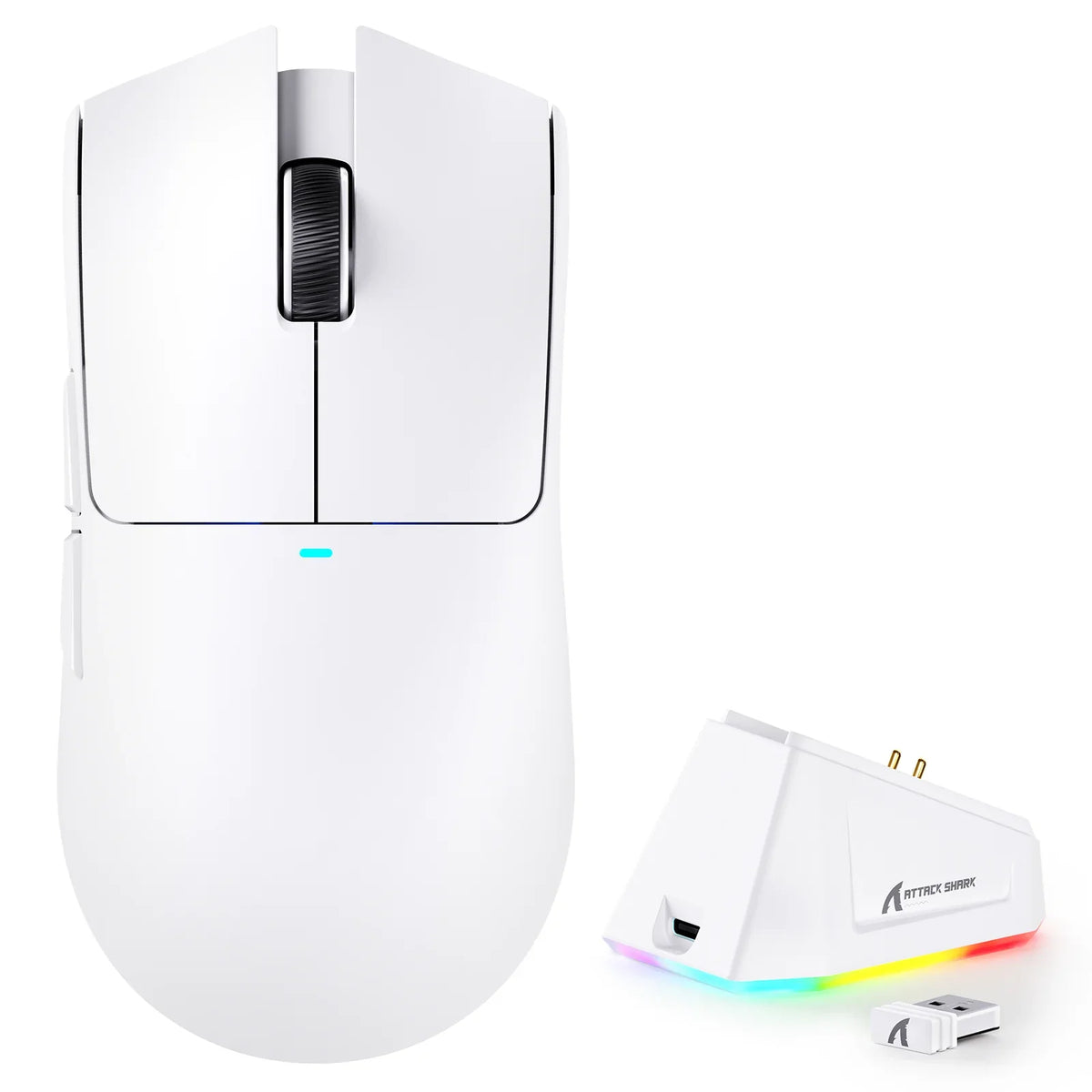
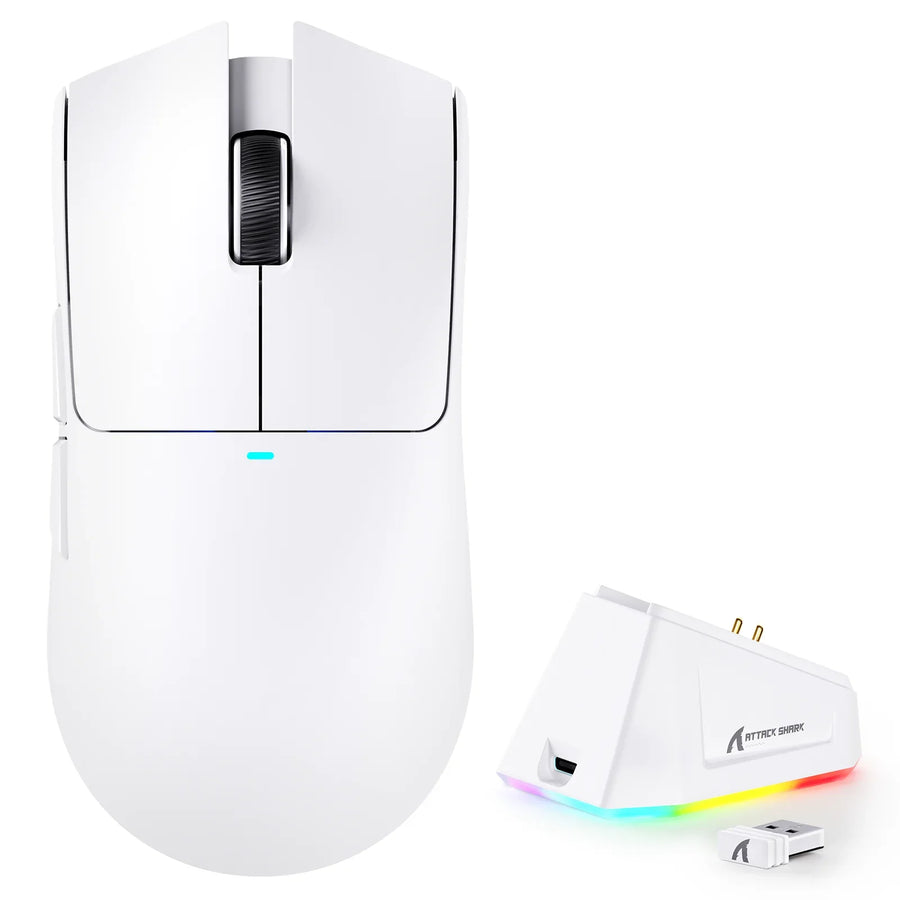
Start by confirming that the problem is limited to the charging dock and not a broader battery issue. Reseat the mouse squarely, then check that each pogo pin moves and springs back normally.
If a pin is stuck, recessed, or visibly damaged—or if charging still fails after you rule out the cable and power source—stop and contact model-specific support instead of opening the dock yourself.
Confirm the failure before touching the dock
Before inspecting any hardware, determine whether the dock is the problem or whether the mouse has a broader charging issue. That answer tells you whether to start with contact checks or support.
- Turn on the mouse and confirm that it still works wirelessly. A mouse that has lost wireless function entirely points to a broader issue than the dock alone.
- Note the battery level, place the mouse on the dock for a few minutes, and check whether the level changes.
- If your exact mouse model documents another charging method, such as a USB cable, try it. If the mouse charges that way but not on the dock, keep the dock, its pins, and its power path as the focus.
- If no documented method charges the mouse, do not assume the dock is at fault. The battery or another internal part may also be involved, which calls for model-specific testing rather than more external checks.
- Keep the housing closed at this stage. Every early step should be external and reversible.
Restore contact by checking alignment and mouse-base pads
A magnet can pull the mouse into place without ensuring that the charging pins touch the metal pads on its base. If charging starts or stops when you shift the mouse slightly, alignment and pad contact are the most useful next checks.
Set the mouse on the dock without pressing down, and let the magnet seat it. Check where the dock's pins land in relation to the mouse's charging pads. If you have seen the mouse charge normally before, compare the two positions. Spring-loaded pogo-pin travel is designed to absorb minor misalignment, so a small gap or dust film is more likely than a pin that is completely out of position. If a normal reseat restores charging, keep the mouse seated squarely each time. Check pin travel only if the problem returns. If reseating changes nothing, the pins or the dock's power path are more likely causes; the next two sections cover those checks.
Inspect pogo-pin travel without forcing it
Each charging pin uses an internal spring to press against the mouse's contact pad. A pin that cannot move properly can block the connection even when the mouse appears to be seated correctly. Check this with the dock unplugged, and do not force the mechanism.

- Disconnect the dock from power before looking closely at the pins. This keeps you from touching a live contact.
- Compare the two pins for height, cleanliness, and whether they sit at the same level.
- Press gently on the visible pin tip with a fingertip or soft, dry object, and watch it spring back. Spring-loaded pogo pins rely on a plunger and internal coil spring to maintain pressure, so normal movement in both pins is a good sign.
- Stop if a pin is recessed, crooked, or does not return after you release it. Contact support instead of pushing harder, prying, or adding lubricant.
- If both pins move normally, reconnect power and retest with the mouse placed squarely and without force before assuming the pins are the cause.
Rule out the dock's cable and power source
A dock can look powered because its indicator is lit or its cable is connected, yet still receive too little power to charge the mouse. Testing the cable and power source separately from the mouse helps identify an input-side problem.
Change one variable at a time. First, try the dock's original cable in a different USB port on the same computer and note whether the result changes. Then, only if your model's documentation allows it, try a different cable or a wall adapter that matches the dock's documented requirements. A USB-C connector shape alone does not show that a cable, port, or charger supplies compatible power, so treat each swap as a test rather than an assumed fix. If the dock responds differently with a new cable or port, the original input path was likely the limiting factor. If nothing changes, return to the contact checks above or contact model-specific support instead of replacing parts by guesswork.
Clean only the contact surfaces your model supports
Cleaning methods are not safe for every wireless mouse and dock, so check your exact model's documentation before cleaning anything. Do not improvise with a random liquid or tool; that can turn a manageable contact problem into permanent damage.
If your model's documentation confirms a safe cleaning method, disconnect both the mouse and dock from power first. Use only the approved amount and tool. Keep liquid from pooling inside the dock housing unless the documentation expressly allows it, and let every surface dry completely before reconnecting anything. Retest with normal, unforced placement afterward. If your model's documentation does not describe a cleaning method, skip cleaning the contacts. Rely on the external inspection from the previous sections and contact support if the problem continues.
Use one-variable tests to locate the failed component
After reseating the mouse, inspecting the pins, and swapping the cable or power source, the results can narrow the likely cause without proving which part failed. Use the pattern to choose the next test, not as a final diagnosis.
| What changed when you tested it | Most useful next step |
|---|---|
| Charging returns after a square reseat | Keep placement consistent; recheck the pins only if the problem returns |
| A pin does not move or return normally | Stop mechanical checks; contact support |
| Charging starts with a different cable or port | Treat the original cable or power source as the likely cause |
| Nothing changes across all external tests | Contact model-specific support with your test results |
A dock-only failure, where a documented alternate method still charges the mouse, keeps the dock and its input path as the leading branch. If no charging method works, the battery or another internal part remains possible, and testing it requires steps beyond what you can safely do from outside the housing. Either way, a repeatable failure after these checks is enough reason to ask for help before you know the exact part involved.
Know when to stop and seek model-specific support
Stop troubleshooting if a pin is damaged or will not spring back, if charging remains abnormal after the checks above, or if the next step would require opening the mouse or dock. At that point, contact support rather than improvising a repair.
Opening a device or attempting an unsupported repair can affect manufacturer coverage. Check how restoration attempts affect your warranty before going beyond external inspection. When you contact support, have your exact model name, the symptom, and the results of your reseat, pin, and cable tests ready. This information can help with diagnosis. If you use an ATTACK SHARK mouse or dock, our team can walk you through model-specific steps. You can also contact support directly instead of guessing at a fix that may not apply to your unit. Many affordable wireless gaming mice use this same pogo-pin dock design, including some low-cost gaming models, so these checks apply broadly even though layouts and indicator lights vary by model.
FAQs
Why does my mouse charge only when I move or press it on the dock?
Charging that depends on repositioning usually points to alignment, pad cleanliness, or pin pressure rather than the battery. Reseat the mouse squarely without extra pressure, and inspect the pins as described above if the problem keeps returning.
Can I use rubbing alcohol to clean wireless mouse charging pins?
No cleaning method is safe for every mouse and dock, so check your exact model's documentation first. Never spray or pour liquid directly into the dock without confirmed model-specific guidance.
Can I test the dock with any USB cable or charger?
A different cable or port is useful as a controlled test, but only when it matches what your model's documentation allows. A matching connector shape does not by itself confirm that a cable, charger, or port is compatible with your dock.
When should I stop troubleshooting and contact support?
Stop if a pin is damaged or does not spring back, if charging remains abnormal after your external checks, or if fixing it would mean opening the mouse or dock. Contact model-specific support with your exact model and test results before attempting disassembly.