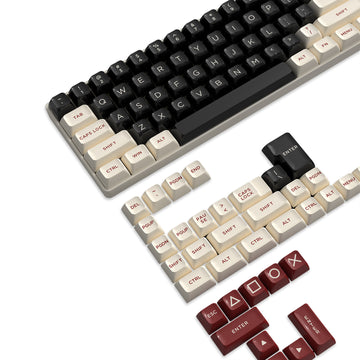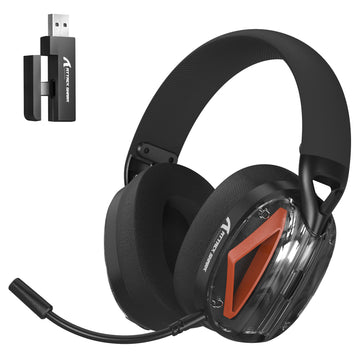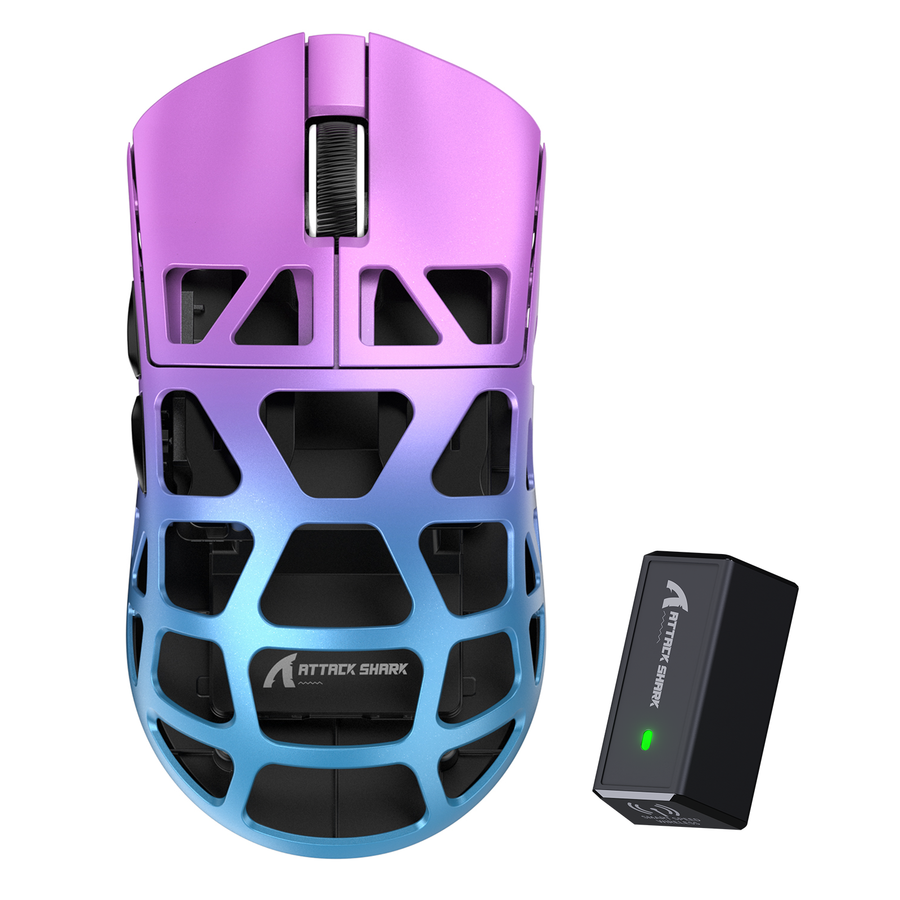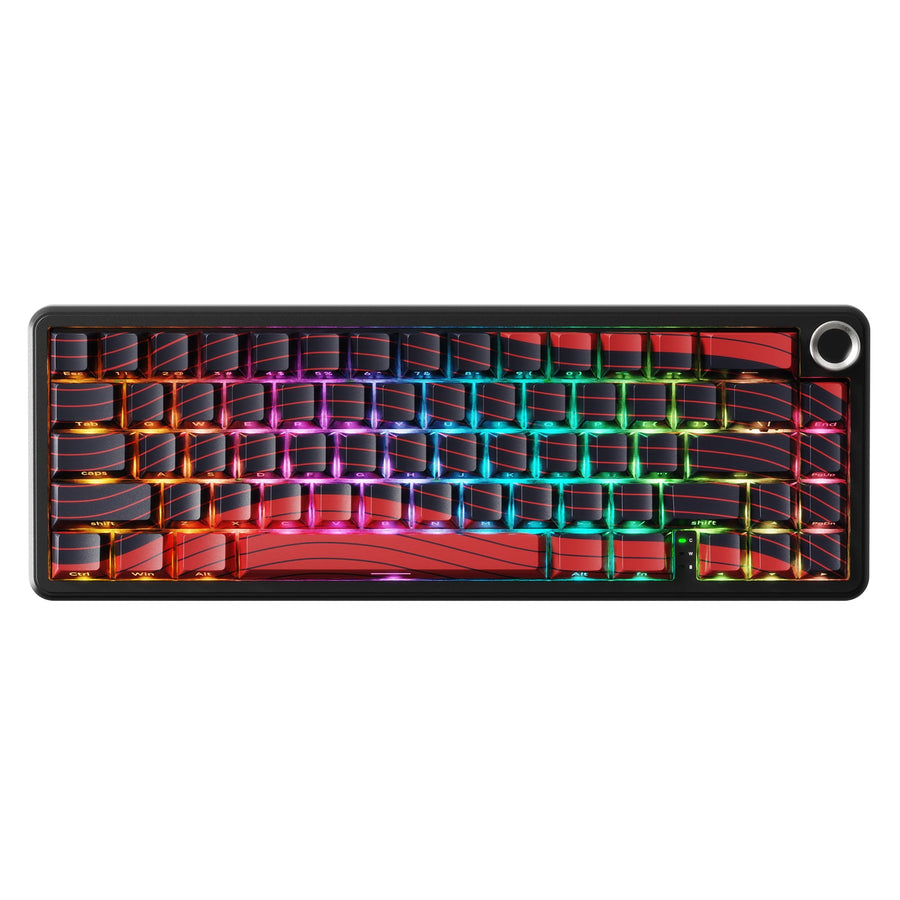
Before you pair anything, write down what each device can do. List your keyboard and mouse separately, note every connection mode each one supports, and match that mode to the receiver or Bluetooth host that goes with it. This connection map keeps a multi-device desk from turning into a guessing game later.

Start With a Connection Map Before Pairing
Use one receiver for both devices only when the relevant product documentation explicitly confirms shared pairing. Otherwise, build one row per device with the mode you will use, the receiver or Bluetooth host it needs, and its fallback path.

Grab a notepad or a phone note and build one row per device: device name, the mode you will use (Bluetooth, 2.4GHz receiver, or USB cable), the receiver's identity or the Bluetooth host it will pair with, the port you plan to use, and a cable fallback if the device supports wired mode.
Check the box or manual for each device before you touch a pairing button. Each wireless keyboard and mouse has its own supported modes, and the receiver in the box should be treated as assigned to its original device unless the maker's documentation says otherwise.
Do not assume two similar-looking USB dongles are interchangeable. If you want one receiver to run both your keyboard and mouse, confirm that shared pairing in the product documentation first. Otherwise, keep each receiver assigned to its own device and use this map every time you switch modes, move a port, or test reconnection later.
Choose Bluetooth, 2.4GHz Receiver, or Wired Mode for Your Desk
Choose Bluetooth when both the host and peripheral support it, choose a documented 2.4GHz receiver path when the matching receiver and a host USB port suit your desk, and choose wired mode for charging, recovery, or a host that cannot complete the wireless path when the device supports wired connectivity.
| Connection Path | Best-Fit Scenario | Setup Tradeoff | Useful Fallback |
|---|---|---|---|
| Bluetooth | Laptop or desktop with built-in Bluetooth and limited USB ports | No dongle to lose, but only works if both host and device support it | Use a documented 2.4GHz or wired path if supported |
| 2.4GHz receiver | Desktop gaming setup with a spare USB port for the device | Uses a dedicated receiver and a USB port | Try another port for troubleshooting |
| Wired USB | Charging, first-time setup checks, or a host without wireless support, when the device supports wired mode | Removes wireless variables | Use the supplied cable only through the device's documented wired path |
For a gaming desktop with open ports, a dedicated 2.4GHz receiver may be the simplest path. On a limited-USB laptop, Bluetooth can conserve ports if both sides support it. On a mixed tri-mode desk, keep a documented wired fallback ready for any device whose wireless path drops. When you are troubleshooting, wired mode can help isolate whether the wireless path is the problem, but only on a device that supports wired connectivity.
Pair One Device at a Time and Label Every Receiver
Pair the keyboard first, confirm it works, label its receiver, and only then move to the mouse. Working through devices one at a time helps prevent a receiver from being reassigned to the wrong peripheral.
- Gather both devices, their receivers, cables, and a few labels before you start. Keep unpaired dongles separate so they do not get mixed up.
- Check each device's manual for its correct mode switch position and pairing sequence.
- Pair the keyboard alone. Type a few characters to confirm it responds, then label its receiver or Bluetooth host with the device name.
- Record the port the keyboard's receiver uses, or note that it runs on Bluetooth.
- Pair the mouse alone. Move the cursor and click each button to confirm it responds, then label its receiver the same way.
- Put the computer to sleep and wake it once to confirm both devices reconnect before you tidy any cables.
Connect each receiver directly to the host during this first pass rather than through a hub or dock. That keeps detection issues out of your first test.
Place Receivers for a Clean, Stable Desk Layout
Keep each receiver plugged straight into the host whenever you can. A direct connection gives you a clean baseline before you add any hub, switch, or dock to the chain.
Once both devices are paired, keep each receiver's identity recorded even after you reorganize the desk. It is easy to unplug a labeled dongle during a cable cleanup and lose track of which device it belongs to.
If a 2.4GHz device becomes jittery or drops out instead of staying fully disconnected, try another USB port first, then move the receiver farther from nearby equipment, especially other USB 3.0 devices and cables. Our USB 3.0 interference guide walks through why USB 3.0 hardware can create radio interference near a 2.4GHz receiver. If moving the receiver clears up the jitter, treat that as one plausible local cause, not proof that every USB 3.0 port is a problem. If nothing changes, the issue may be mode or receiver matching rather than placement.
Recover a Device That Will Not Reconnect After Sleep or Mode Switching
Start with the least disruptive check and work outward: confirm the device is still set to the mode you paired it in, confirm it has power or a charge, and confirm you are using the receiver you recorded for it. A mode switch that got bumped or a receiver that ended up in the wrong port can explain a failed reconnection.
If the mode and power check out, plug the receiver directly into the host and try a different port before assuming a deeper fault. A device that is fully undetected needs a mode, receiver, and host-path check. A device that connects but behaves erratically needs a placement check, including moving the receiver away from other USB 3.0 hardware and cables.
If the device still will not reconnect, re-pair it only through the process documented for that model. Sleep-related behavior and fixes vary by product and setup, so there is no single universal fix to apply here. If the peripheral supports wired mode, plug it in as an isolation test. If the cable works, focus on the wireless setup; if wired and wireless both fail, check the manufacturer's current support documentation for the device.
Lock in the Setup and Keep a Wired Fallback
Once both devices reconnect reliably, keep the same connection record from setup: each device's mode, its labeled receiver or Bluetooth host, and the port it uses. Route or hide cables only after that wake test has passed, not before.
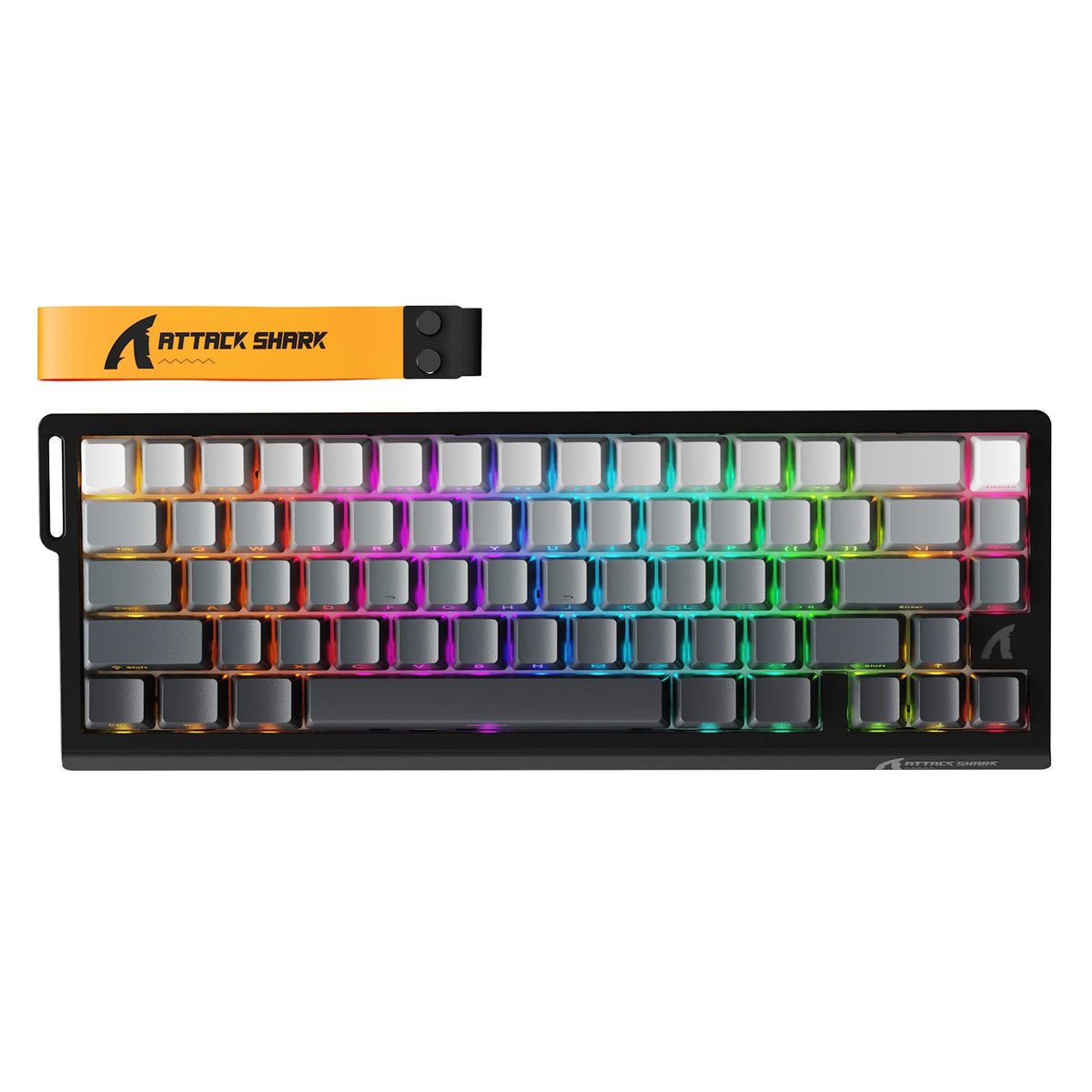
If you want a tri-mode keyboard with Bluetooth, a 2.4GHz receiver, and USB-C wired connectivity, our X68 PRO HE keyboard supports all three, so a dropped wireless link still leaves a documented wired path to test. For the mouse side, choose a model whose documentation lists wired mode before treating a cable as a fallback.
Choose the mode and port that pass the wake test as your default. If one device still fails, leave its receiver and cable accessible, use the documented wired path when the device supports it, and contact the maker's support team with the recorded mode and port.
FAQ
How Do I Know If My Device Is in Bluetooth or 2.4GHz Mode?
Check the mode switch, indicator light, or manual for your specific keyboard or mouse, then use the pairing flow that matches: the host's Bluetooth settings for Bluetooth mode, or the paired receiver for 2.4GHz mode. The exact switch position and indicator meaning vary by model, so the manual is the fastest way to confirm it.
Why Does My Mouse Disconnect After Sleep Mode?
Sleep-related behavior and fixes vary by product and setup. First check the active mode and power. If the mouse remains unavailable, use the recovery path documented for that model rather than applying a universal sleep setting.
Can I Use One Receiver for Both a Keyboard and Mouse?
Only if the product documentation for those specific devices explicitly confirms shared receiver pairing. Otherwise, assign each receiver to its original device or use Bluetooth when the host and both peripherals support it.
What Should I Do If the Receiver Is Not Detected?
Confirm that the device is in receiver mode and has power, then plug the receiver directly into the host rather than through a hub. Try another USB port and move the receiver away from nearby equipment. If it still is not detected, follow that model's documented pairing steps or contact support.