If you want a wired USB gaming mouse that works the moment you plug it in, look for a listing that states plug-and-play or no-driver support directly, not just a high DPI number. If you plan to customize DPI steps, lighting, or button assignments, you need a mouse whose maker documents exactly how that software and any onboard memory work. The right pick depends on which job matters more: instant basic use, or documented customization.
Key Takeaways
- Basic pointer, click, and scroll input can work through Windows without installing extra software, but that does not cover gaming-specific features.
- A USB connection proves recognition, not feature support; DPI switching, lighting, remapping, and firmware still depend on the exact model.
- Onboard memory should never be assumed from wired mode or a no-driver label alone; require an explicit documentation statement before trusting it.
- The shortest safe setup path is connect, test basic input, then add software only for a documented, specific feature you actually need.
Choose the USB gaming mouse setup that matches your software tolerance
Your priority, not the spec sheet, decides which wired USB gaming mouse fits you best. Match your setup style to evidence you can actually verify before buying.
Choose basic input when software avoidance is the priority
Basic wired input is the safer choice for shared computers, public setups, or any PC where installing extra apps isn't practical. Look for a product page that states plug-and-play or no-driver operation directly, but treat that claim as covering movement, clicks, and scrolling only, not lighting patterns or DPI switching.
Choose customization only when the feature path is documented
Customization is worth chasing only when the maker spells out exactly how it works. DPI steps, RGB modes, remapped buttons, and firmware updates often depend on a companion app or an onboard chip, so confirm the exact mechanism in the manual before assuming any of it works out of the box. Many wired-first models also sit inside broader tri-mode gaming mice lineups that add wireless modes later if your needs change.
| Reader priority | Evidence to verify | Practical consequence |
|---|---|---|
| Basic input | Plug-and-play or no-driver wording | Works on most PCs with no install |
| Customization | Documented software or onboard-memory statement | May require an app install or admin rights |
| Portable profiles | Explicit onboard storage plus persistence statement | Settings may or may not follow the mouse between PCs |
What a wired USB connection guarantees—and what it does not
A wired USB connection guarantees basic recognition, not full feature support. Windows can usually get pointer and click input working right away, but everything past that depends on the exact model.
What Windows can usually handle at connection time
Windows includes built-in system-supplied HID support for standard mice, so a compliant wired USB mouse can usually move the cursor, click, and scroll without installing anything. USB also delivers power directly through the cable, which is why wired mice skip battery charging and pairing steps that wireless models need.

What the USB label does not certify
A USB connector does not certify that every gaming feature works on every operating system. The USB HID device class standardizes how a compliant mouse talks to a computer; it does not specify which software features, firmware tools, or profile systems a given model supports on Mac or Linux. For anything beyond basic input, check the maker's exact compatibility list for your operating system.
Separate basic input from software-dependent customization
Basic input and full gaming configuration are two different promises. A mouse can deliver one perfectly and still leave the other undocumented.
Basic input is not the same as full gaming configuration
Cursor movement, standard clicks, and the scroll wheel typically work as soon as the operating system recognizes the mouse. Wired mice are generally plug-and-play devices that require no extra software, though higher-end gaming models are often the exception. DPI switching, lighting patterns, button remapping, and firmware updates sit in a separate layer that depends on the exact model's software or onboard controls, so check each feature on its own instead of assuming a working cursor means everything is active.
Use a no-driver product claim narrowly
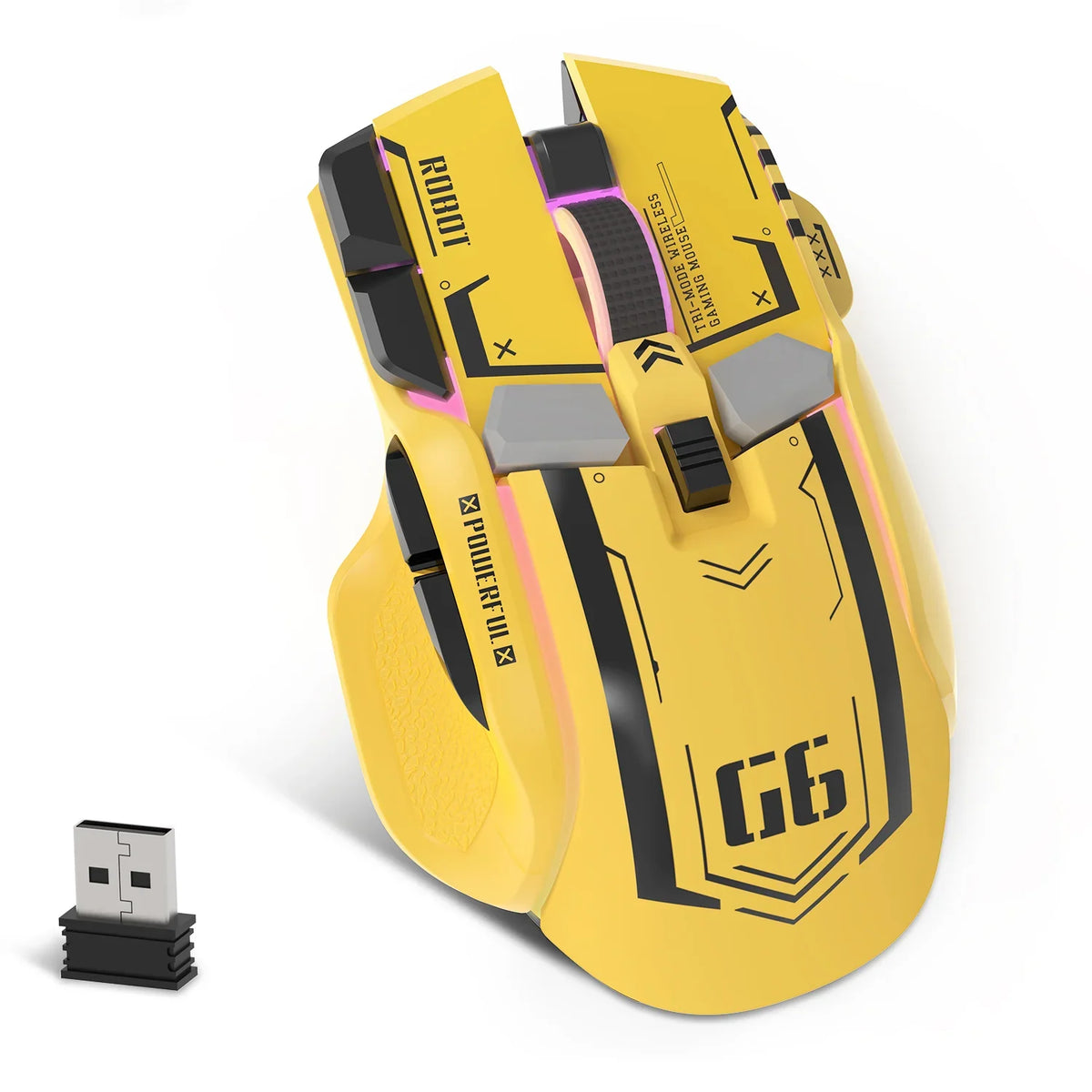
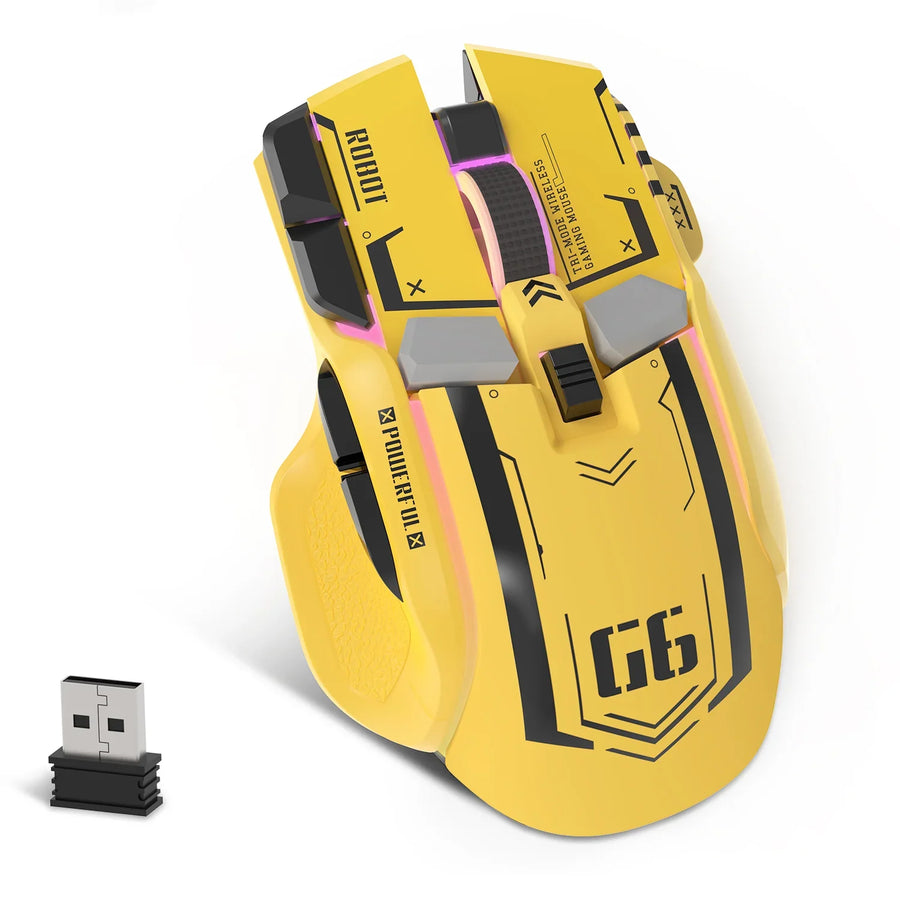
The ATTACK SHARK G6 Tri-mode Gaming Mouse is one worth checking on its own terms. Our product page lists wired, 2.4G, and Bluetooth 5.2 modes plus plug-and-play operation with no driver software required. The same listing notes that its buttons aren't software-programmable, so treat the no-driver claim as basic-use confirmation, not full customization. If you need software-based button mapping, look at a different model and confirm that feature in its own documentation before buying.
Verify onboard memory before treating a mouse as plug-and-play across PCs
Onboard memory is a claim you verify, not one you assume. A USB connection or a no-driver label proves nothing about whether settings travel between computers.
The three lines worth finding in the documentation
- A direct statement that the mouse has onboard memory or onboard profile storage
- The exact settings or profile count it saves, such as DPI levels, macros, or lighting modes
- Confirmation that saved settings stay active in wired mode without the companion app running
What to conclude when the page is silent
If a listing never mentions onboard memory, don't assume it exists just because the mouse is wired or plug-and-play. Base your purchase on the basic-use facts you can confirm, or keep checking the manufacturer's manual until you find, or rule out, an explicit onboard-storage statement.
Set up a wired USB gaming mouse on a PC
Setup for a wired USB gaming mouse takes minutes when you connect first and add software second. Skip ahead only when a specific feature actually needs an app.
The shortest first-use sequence
- Plug the mouse into an open USB port on your PC.
- Give Windows a few seconds to recognize the device automatically.
- Test the cursor, both main buttons, and the scroll wheel before doing anything else.
- Install the manufacturer's software only if you want DPI, lighting, or button customization.
- Save any custom settings, then check the documentation to see whether they stay on the mouse or only in the app.
!Wired USB gaming mouse plugged into a laptop during first-time setup

When to stop treating setup as plug-and-play
If the cursor and clicks work but a feature you wanted, like macro keys or RGB lighting, doesn't respond, that's a software gap, not a USB failure. Check the driver download page for your exact model before assuming the feature is missing entirely, and contact support if the documented software still doesn't deliver it.
FAQs
Can I use the same saved settings on multiple PCs?
Only if the manufacturer explicitly documents onboard storage and lists which settings it saves. Without that documentation, treat software-based profiles as tied to the PC where you installed the app, not portable across computers.
What if the mouse works but its DPI, lighting, or button controls do not?
Basic input working confirms USB recognition, not full feature access. Check whether the missing control is listed as software-only in the manual, install the matching app if one exists, and use the manufacturer's support channel if the documented feature still isn't available.
Does Mac or Linux support mean every mouse feature will work?
A listed compatibility claim for Mac or Linux usually covers basic pointer and click input, not every gaming feature. Look for separate documentation confirming that configuration software, firmware tools, or saved profiles are supported on that specific operating system before relying on them.