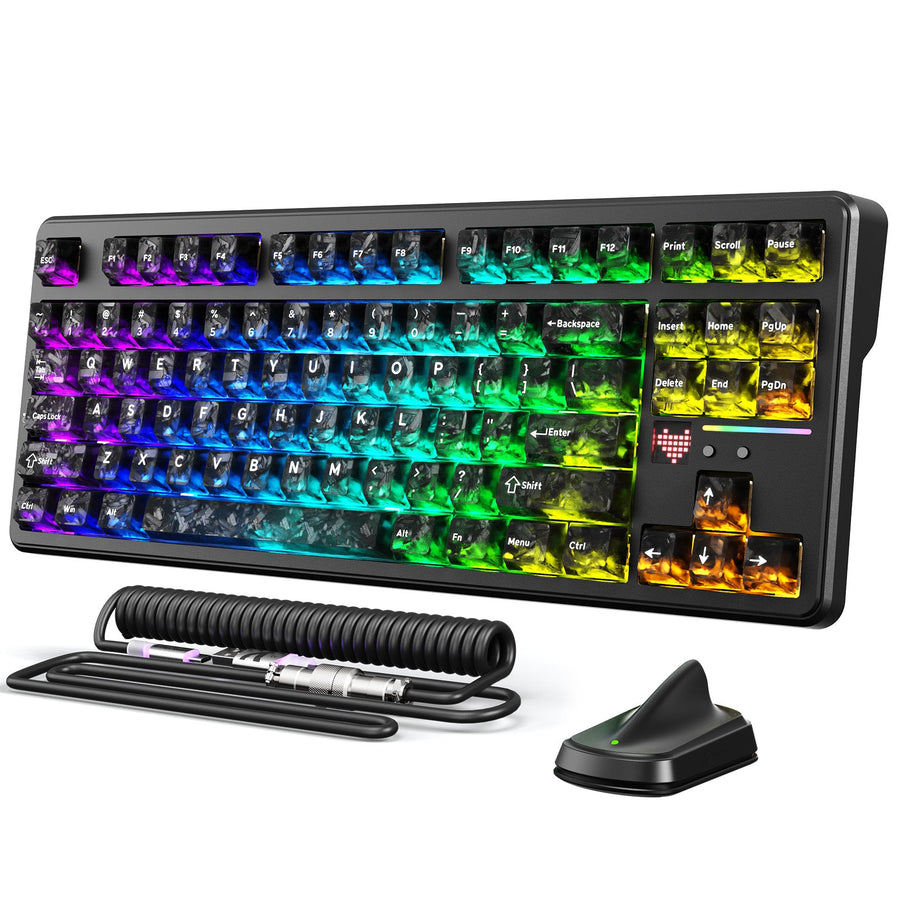
When a new gaming keyboard feels wrong, work through it in order. Record the exact symptom, inspect the hardware, test key registration and layout, isolate the connection and software, save your evidence, then decide whether to keep adjusting, contact support, or start the applicable return process. This first-week path for gaming keyboard troubleshooting separates normal adjustment from a real keyboard-side problem, so you don't return a working board or ignore an actual defect.

Start Here: The First-Week Diagnostic Path
Before you touch a single setting, write down exactly what feels off. Then work through six checks in order, from a simple symptom note to a support or return decision.

Record the Symptom Before Changing Settings
Write these details down before you change anything:
- The exact key or group of keys involved, and whether the problem is feel, missed input, repeated input, delay, layout confusion, or a software detection issue.
- The connection mode in use (wired, 2.4GHz receiver, or Bluetooth), the computer, and the game or app where it happens.
- Whether the symptom happens every single time or only occasionally.
This short note becomes your reference point for every later test, and it is the first thing support will ask for if you escalate.
The First-Week Check Order
Work through this sequence for troubleshooting a gaming keyboard in its first week:
- Inspect the keyboard visually without forcing any component.
- Test the affected keys and confirm the printed layout matches what you expect.
- Isolate one connection path at a time.
- Isolate one software or firmware variable at a time.
- Save your evidence, including notes, photos, or video.
- Decide whether to keep adjusting, contact support, or start the applicable return process.
Reversible checks always come first. Remapping, firmware updates, and return requests come later, once you know what you are actually dealing with.
Inspect the Keycaps, Switch Areas, Cable, and Connectors
Before you test any keys, look the board over without forcing anything. A visible defect here means you should document it now, while a clean inspection sends you straight to key testing.
Check Keycap and Switch-Area Seating
Compare the affected key with the keys around it:
- Look for a visible height difference, misalignment, wobble, or anything blocking the key from moving normally.
- Treat a scratchy or unusual feel as a symptom worth writing down, not automatic proof of a bad switch. Feel alone is not a reliable defect indicator until it is confirmed by a registration test.
Inspect the Cable, Connector, Receiver, and Housing
Check the parts that carry the signal:
- Look for damaged cable insulation, a loose or bent connector, or visible cracks or gaps in the housing.
- For wireless use, confirm the receiver is seated properly and the battery has charge before you touch any software settings.
Use visual checks first. Do not force keycaps, switches, connectors, or the case open, and follow your model's own instructions before removing any component. If you see clear damage, photograph it and stop experimenting further; that photo becomes part of your evidence packet later.
Test Key Registration, Layout, and Actuation One Variable at a Time
A key that feels different is not the same problem as a key that fails to register. Testing one variable at a time tells you which one you actually have.
Separate Feel From Registration
Run this simple test on the affected key:
- Open a plain text field or a dedicated keyboard test tool.
- Press the key several times in a row and watch for missed input, doubled input, or a strange actuation point.
- Repeat the exact same action on a nearby key under the same conditions and compare results.
If the same key misses or repeats consistently, that is a registration problem, not a feel problem. According to Microsoft's keyboard troubleshooting guidance, testing the keyboard on another computer is a useful next step: a symptom that follows the keyboard to a second machine is stronger evidence of a keyboard-side issue, while a symptom that disappears elsewhere points back to the original computer's settings or drivers.
Confirm the Layout Before Calling a Key Missing
Layout differences between models are common and do not mean a key is broken:
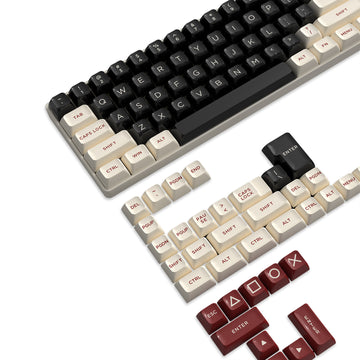
- Compare the new board's printed layout, function layer, and any remaps against your old keyboard and the model's documentation.
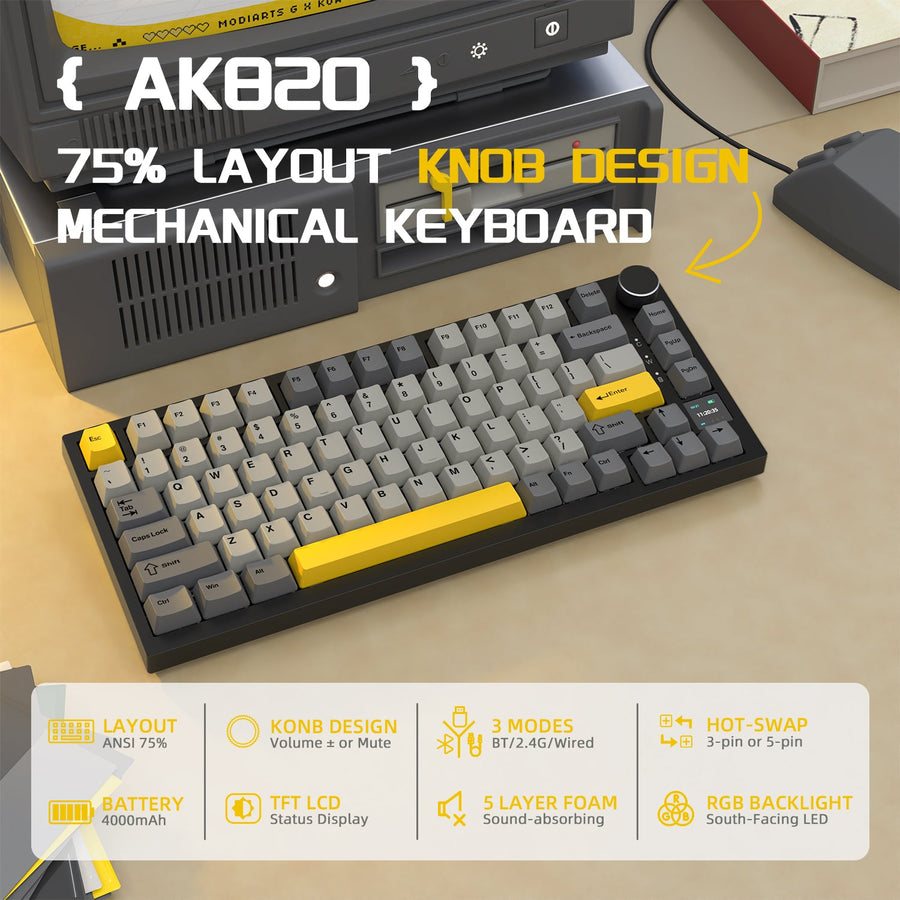
- Layouts genuinely vary. A compact 75% board like the K86 ships with 86 keys, while a 60% board like the X68 HE ships with 66 keys, so a key you expect from a full-size board may sit on a function layer instead of missing entirely.
- Run affected keys through our keyboard test tool as a convenient way to confirm registration and rollover, though it is a testing convenience rather than a diagnosis on its own.
Isolate Wired, Wireless, Bluetooth, and Software Issues
Delayed or unreliable input needs a setup and connection check before you judge it as a hardware problem. Change one connection or software variable at a time so you can actually tell what fixed it.
Retest One Connection Path
Work through one mode at a time:
- Pick the connection your model supports, such as wired, 2.4GHz receiver, or Bluetooth, and stick with it for the whole test.
- For wired use, plug directly into a computer port and bypass any USB hub. For wireless use, confirm battery charge and receiver placement.
- Record whether the symptom changes before you switch to another mode.
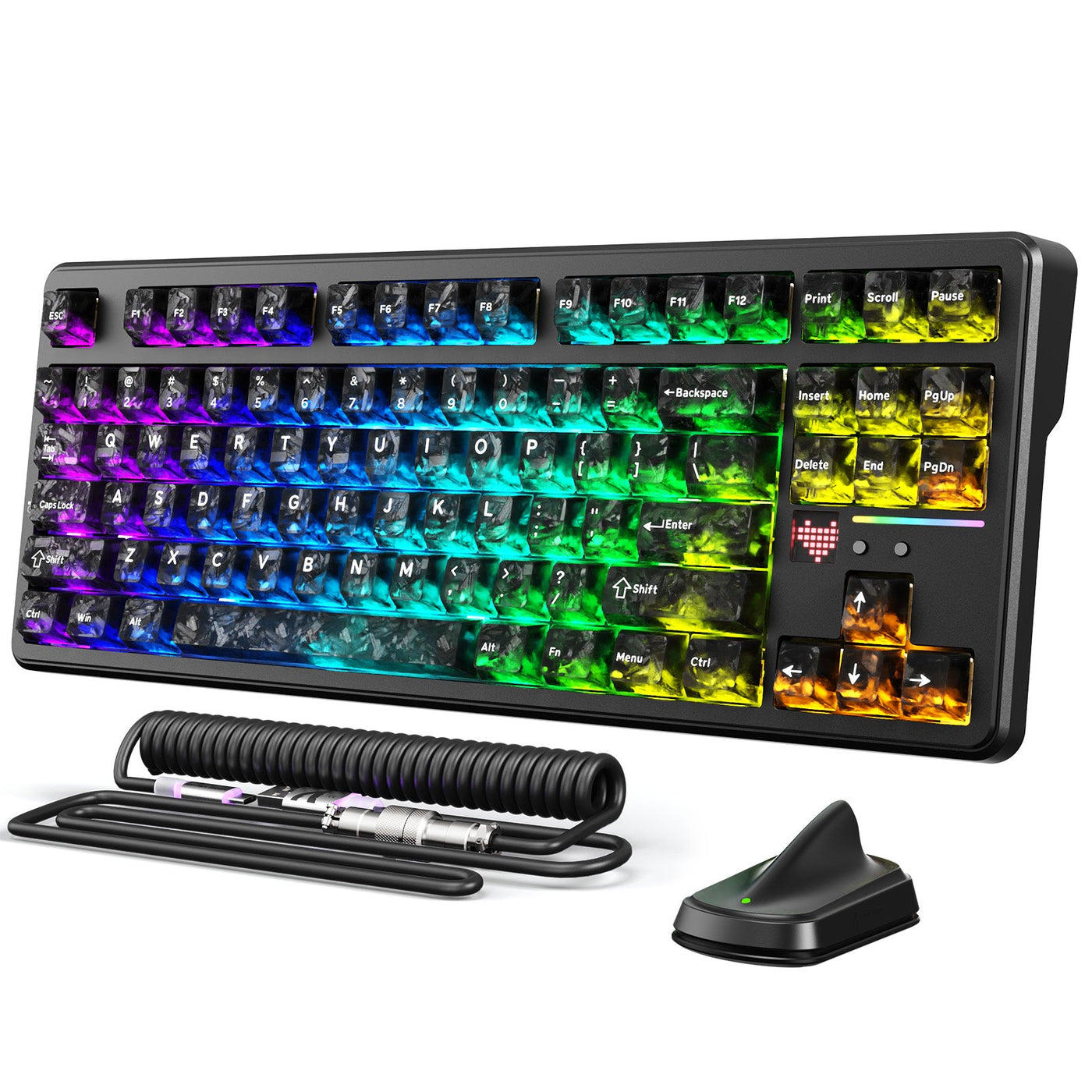
Microsoft's guidance on keyboard issues recommends confirming power and connections, trying a different USB port, removing a hub, checking the cable, and clearing debris around the keys before moving on to driver-level fixes. A tri-mode board such as the X87 Ultra, for example, supports 2.4GHz wireless, Bluetooth, and wired connections, and each mode should be tested on its own rather than switched mid-test.
Use Model-Specific Software, Firmware, or Calibration Guidance
Once the connection itself is ruled out, check whether your model needs a software step:
- Confirm whether your keyboard requires companion software, a calibration step, or a firmware update before you change any settings.
- Use our keyboard support and downloads collection to find the correct resources for your exact model.
- Do not apply a driver, reset shortcut, or calibration flow from a different keyboard model. Procedures are not interchangeable across the lineup.
Retest after each change and note whether the symptom shifted. That result feeds directly into the escalation decision below.
When to Contact Support or Start a Return
A symptom that survives isolated checks, follows the keyboard to another computer, or comes with visible damage has moved past normal adjustment. At that point, preserve your evidence and use support or the applicable return process rather than continuing to experiment indefinitely.
| Symptom pattern | What it likely means | Next action |
|---|---|---|
| Changes or disappears after a reversible check | Setup or computer-side cause | Keep adjusting, one variable at a time |
| Same failure on the same key every time | Possible registration problem | Retest on another computer if possible |
| Follows the keyboard to another computer | Stronger keyboard-side evidence | Prepare support or return request |
| Visible damage to keys, cable, or housing | Physical defect | Document it and contact support or the seller |
Save the Evidence Before the Deadline
Before you go further, according to the FTC's guidance on resolving business disputes, gather:
- Your order record, receipt, warranty or policy documents, original packaging, and photos or video of the issue.
- A short written log of the exact key, connection mode, computer, how often it happens, and which checks changed the symptom and which did not.
Check the actual seller or manufacturer deadline before continuing extended troubleshooting, and hold onto your purchase record and packaging while that process is still available. Saving this evidence does not guarantee a specific outcome, but it does keep your options open.
Choose Support or the Applicable Return Process
With your evidence in hand, pick one path:
- Contact support when you need model-specific guidance or the issue is persistent but not clearly a hardware failure yet.
- Start the applicable return or exchange process when the fault is repeatable and unresolved, or when there is visible damage, and the seller's deadline still allows it.
- State clearly what resolution you want, whether that is troubleshooting help, a repair, a replacement, or a refund, and keep copies of every message you send.
If you own an Attack Shark keyboard, our support team can walk through model-specific steps with you before you decide on a return.
Next Step: Keep Adjusting, Get Help, or Return It
A new keyboard can work correctly without feeling identical to your old one. Small differences in feel or layout may take time to adjust to, but a repeatable, unresolved symptom or visible damage is not something to work around. Keep adjusting if the symptom changed with setup, reach out to support if you need model-specific help, or start your return process with the evidence you already saved.
FAQ
Why do my new gaming keyboard keys feel scratchy or inconsistent?
A different switch feel compared with your old keyboard can simply be an adjustment issue, especially if every key feels this way. But if one key feels notably different from its neighbors, or the same key shows a repeatable registration problem, write it down and run the key registration test before assuming it will wear in.
How do I test whether a new keyboard key is registering correctly?
Press the affected key several times in a text field or keyboard test tool and compare it with a nearby key under the same conditions. If it consistently misses input or double-registers, and the same result shows up on another computer, that points to a keyboard-side problem rather than a one-time mistake.
Is a delayed or unreliable gaming keyboard connection normal?
Some delay can come from an indirect USB path, a low wireless battery, or the wrong connection mode, so check those before assuming a defect. Confirm you are using a direct connection or a charged wireless mode, then check the model-specific software if the issue continues; there is not a universal latency number that defines normal.
When should I return a defective gaming keyboard?
Contact support or start the applicable return process when a repeatable symptom survives your reversible checks, or when there is visible physical damage. Check the seller's actual return deadline first, save your receipt and packaging, and describe the exact fault and the resolution you want when you reach out.