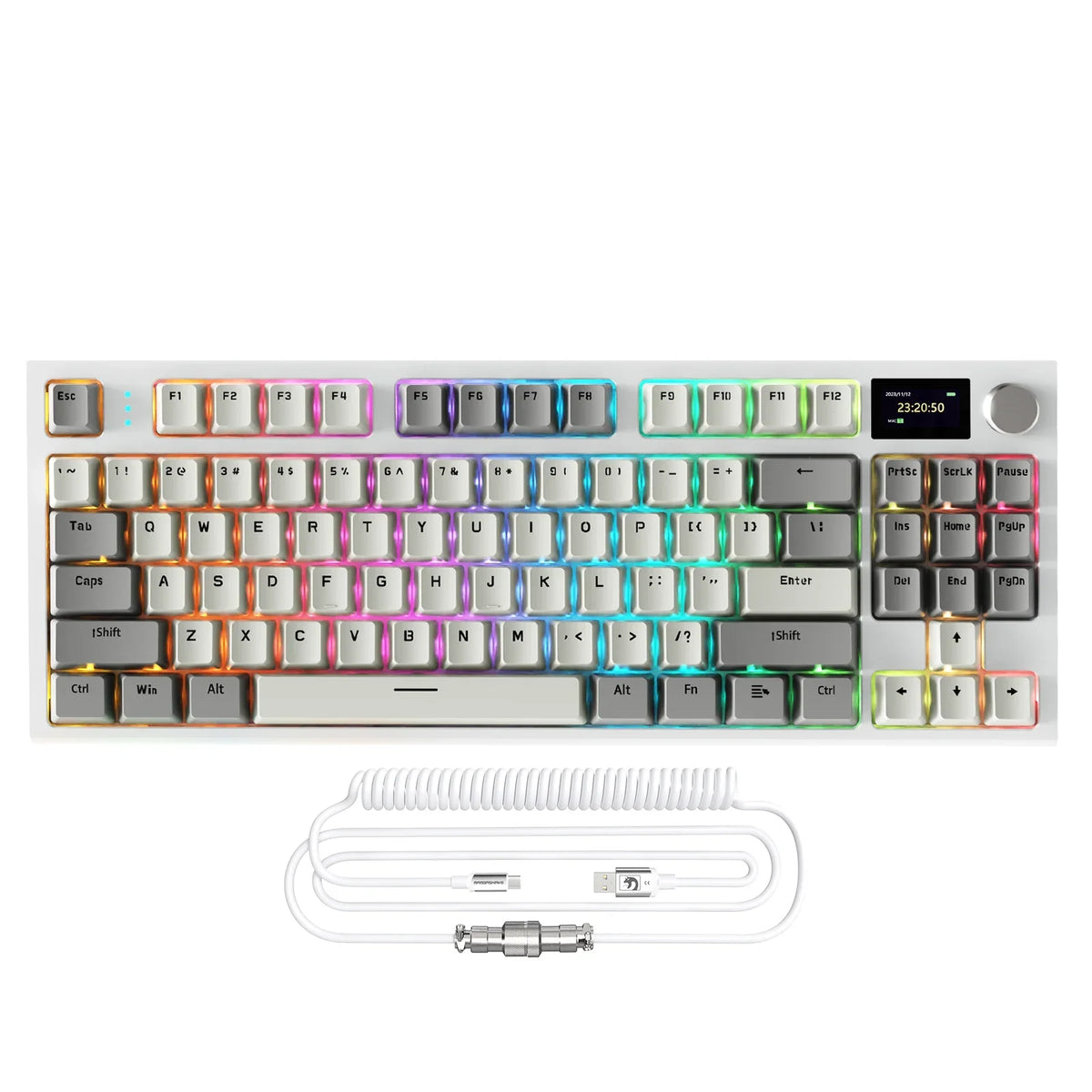
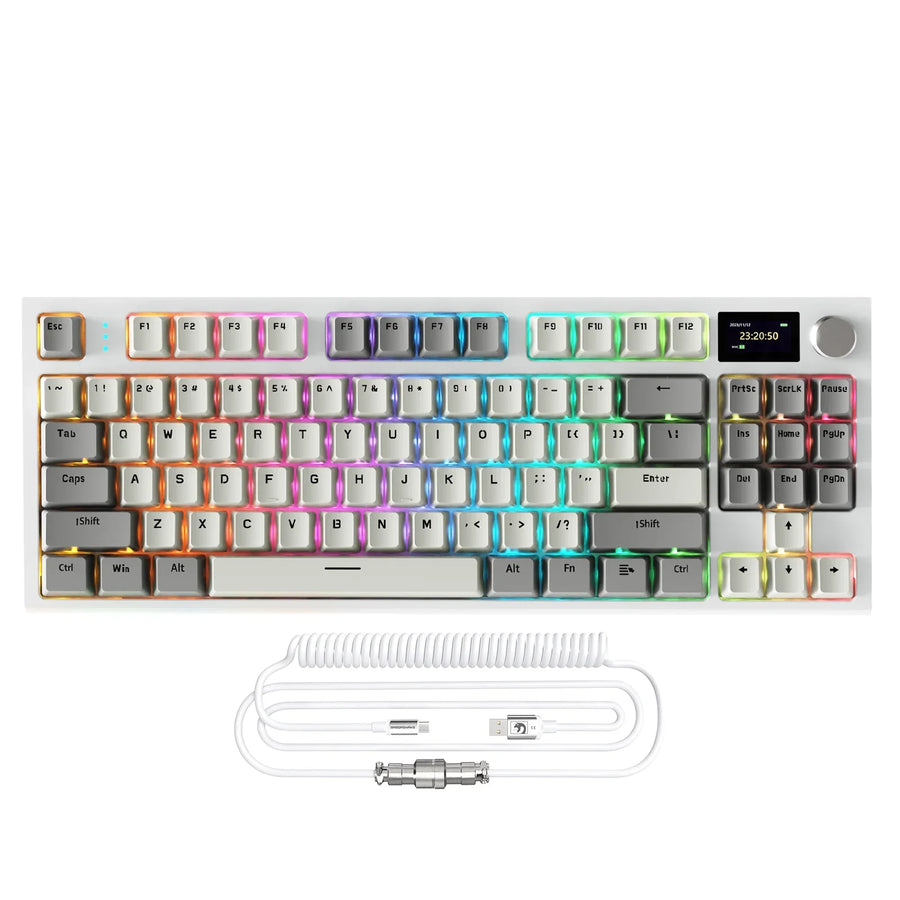
Before comparing finishes or wireless modes, decide whether you need documented clockwise-and-counterclockwise rotary input for volume control, because a knob's shape alone does not confirm that behavior. If incremental adjustment matters, treat any listing that only says "rotary knob" as unverified until the product page or manual states how it reports input. Once that's settled, checking wireless support, push behavior, and layout becomes much easier.
Key Takeaways
- Require documented directional (clockwise/counterclockwise) rotary behavior before assuming a knob gives true incremental volume control.
- Rotation, push behavior, default media mapping, and remapping are four separate features; confirm each one independently.
- Match 2.4 GHz, Bluetooth, and USB-C wired modes to your actual devices, then verify operating-system and software support separately from wireless connectivity.
- Choose layout based on your main desktop scene: gaming and calls favor predictable key access, while compact desks require checking essential-key and knob placement first.
- Buy when control behavior and required connectivity are documented, verify when one decisive fact is missing, and pass when the listing conflicts with your setup.
Choose the control behavior before the keyboard
The core choice is simple: pick a keyboard with documented directional rotary input if incremental volume control matters to you, and treat any knob-only description as unverified until you see that behavior spelled out. This decision should come before you evaluate finish, size, or price.
Choose documented directional input
Look for language that describes clockwise and counterclockwise actions, or explicit references to a rotary encoder, rather than just a photo of a metal dial. Encoder documentation from QMK shows that a properly configured encoder can send separate volume-up and volume-down signals as it turns, and firmware can remap those directions to other functions. That's the behavior worth confirming before you buy.
Treat appearance-only labels as unresolved
A physical knob can represent different kinds of input depending on how the keyboard reports it to your computer. The USB HID specification distinguishes a relative jog-wheel control, which reports incremental changes, from an absolute knob or slider, which reports a fixed position. If the listing doesn't say which one you're getting, don't assume incremental volume adjustment. Keep it in the "verify" category until you find that detail.
Verify rotation, push behavior, and programmability
Once you know the control reports directional input, four separate features determine the daily experience: rotation, push behavior, default mapping, and remapping support. Check each one on its own instead of assuming they all come bundled together.
Check rotation and push as separate actions
- Confirm the knob turns in both directions and that the listing states this explicitly, not just that it "adjusts volume."
- Confirm whether the knob physically presses, and ask what that press does by default. According to splitkb's explanation of rotary encoders, many encoders can also act as a button, and a manufacturer can set the press to mute audio, but that assignment varies by keyboard and is not automatic.
Verify programmability and feel
- Look for firmware or configuration-software documentation that names remapping support, such as VIA or QMK compatibility, rather than assuming any wireless keyboard supports it.
- Treat detents, resistance, finish, and exact placement as things to confirm from photos or a hands-on check, since general knob documentation doesn't establish how a specific model feels or where it sits on the board.
Check wireless modes, software support, and wired fallback
Match the keyboard's wireless modes to your actual devices first, then check operating-system and software support as a separate question, because a successful wireless connection doesn't confirm remapping or firmware compatibility. When choosing a wireless gaming keyboard, latency, host device compatibility, and wired backup matter as much as physical layout.

Match the connection mode to the setup
2.4 GHz, Bluetooth, and USB-C wired are three distinct modes, not interchangeable promises. Check the product's supported-device list against the computer or console you actually use. For example, our K86 lists 2.4G wireless, Bluetooth 5.0, and USB-C wired connectivity as three separate documented modes, so a buyer switching between a desktop and a laptop can confirm each mode individually before relying on it.
Separate software support from wireless support
A keyboard that pairs successfully over Bluetooth hasn't proven it will support remapping software on your operating system. Our AKS068 PRO documents Windows and Mac OS support alongside VIA programmability, which is a specific, checkable claim rather than a general "compatible with everything" statement. Look for the same kind of specific wording before assuming any keyboard's software will work on your machine.
Check charging and wired fallback
Record battery life only with its stated condition. Our K86 lists up to 200 hours with backlighting off, which is a documented figure tied to that specific setting, not a general runtime claim. If you need a wired fallback during a low-battery moment, confirm that USB-C wired use is explicitly listed rather than assuming it from the presence of a charging port. For side-by-side wireless options across other boards, the Keyboard Connectivity collection groups tri-mode and wired listings in one place.
Match layout and knob placement to the desktop scenario
Your main desktop activity should drive the layout choice, not the other way around. Gaming and calls favor predictable key access and documented control behavior, while music, video, and compact desks put more weight on physical reach and available space.
Gaming and work calls
During a match or a call, you want the knob to do what you expect without checking a manual mid-session. Prioritize keyboards that keep frequently used keys in familiar positions, and before treating the knob as a mute control on a call, confirm that a push action is actually documented for that model. If it isn't listed, don't rely on it for a live call.
Music, video, and compact desks
For media playback next to speakers or a monitor, a physical knob is only useful if you know its default action and can reach it without looking. Compare layout footprint against the keys you actually need; a smaller board isn't automatically better if it moves a key you use daily onto a secondary layer.
Use documented examples without ranking them
Our K86 gives one documented example: an 86-key, 75% ANSI US layout with a multi-function CNC rotary knob and tri-mode connectivity, suited to buyers who want a more conventional key layout alongside a rotary control. Our K86 wireless keyboard page lists these specifications directly. Our AKS068 PRO gives a different documented example: a 60% Alice layout with a media-control rotary knob, VIA programmability, and listed Windows/Mac OS support, suited to buyers prioritizing a compact ergonomic footprint. Details are on the AKS068 PRO keyboard page. Neither listing's supplied facts confirm the exact encoder mechanism or default push assignment, so treat that detail as a separate check regardless of which layout you choose.
Make a buy, verify, or pass decision
Turn your findings into one of three actions instead of restarting the checklist.
- Buy when the listing documents directional rotary behavior (if that matters to you) and the connection mode, operating system, or software you need is explicitly listed.
- Verify when one decisive fact is missing, such as push-action mapping or configuration-software support for your OS. Check the manual or contact support before adding it to your cart.
- Pass when the documented layout, control behavior, or connectivity conflicts with your setup, such as a listing with no wired fallback when you need one, or no directional rotary language when incremental control is essential.
Optional details like tactile feel or knob finish don't need to block a purchase unless they're decisive for you specifically.
FAQs
Does pressing a volume knob always mute computer audio?
No. While many rotary encoders can act as a push button, manufacturers do not always wire or program that press as a mute command. The default action depends entirely on the keyboard's factory firmware, so confirm the push assignment in the product manual before relying on it.
Can I remap a keyboard volume knob to control brush size or page scrolling?
Only if the keyboard explicitly documents remapping software or firmware support like VIA or QMK. Without official driver or firmware support for directional encoder mapping, the dial will stay locked to its factory media commands.
Does a wireless connection guarantee that remapping software will work?
No. Wireless connection modes and configuration utilities are separate features. A keyboard can pair normally over Bluetooth or 2.4 GHz while its remapping tools or companion apps remain limited to wired USB mode or specific desktop operating systems.