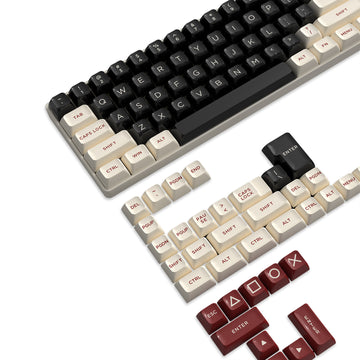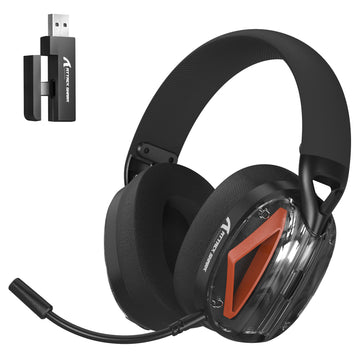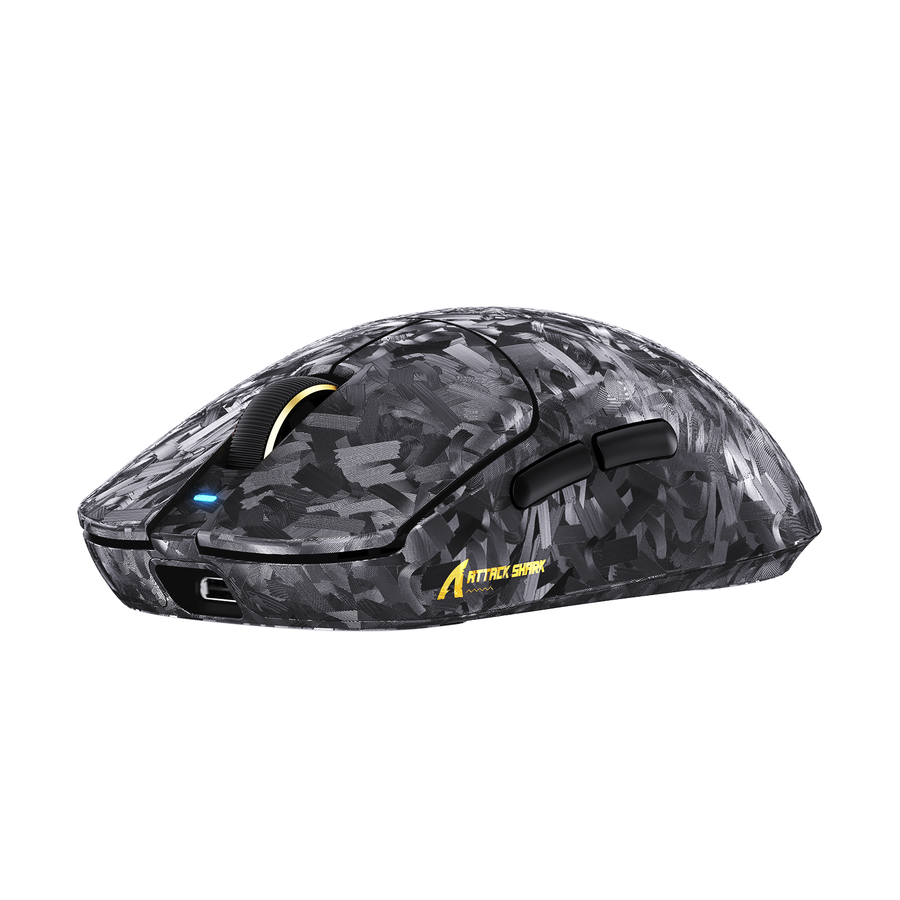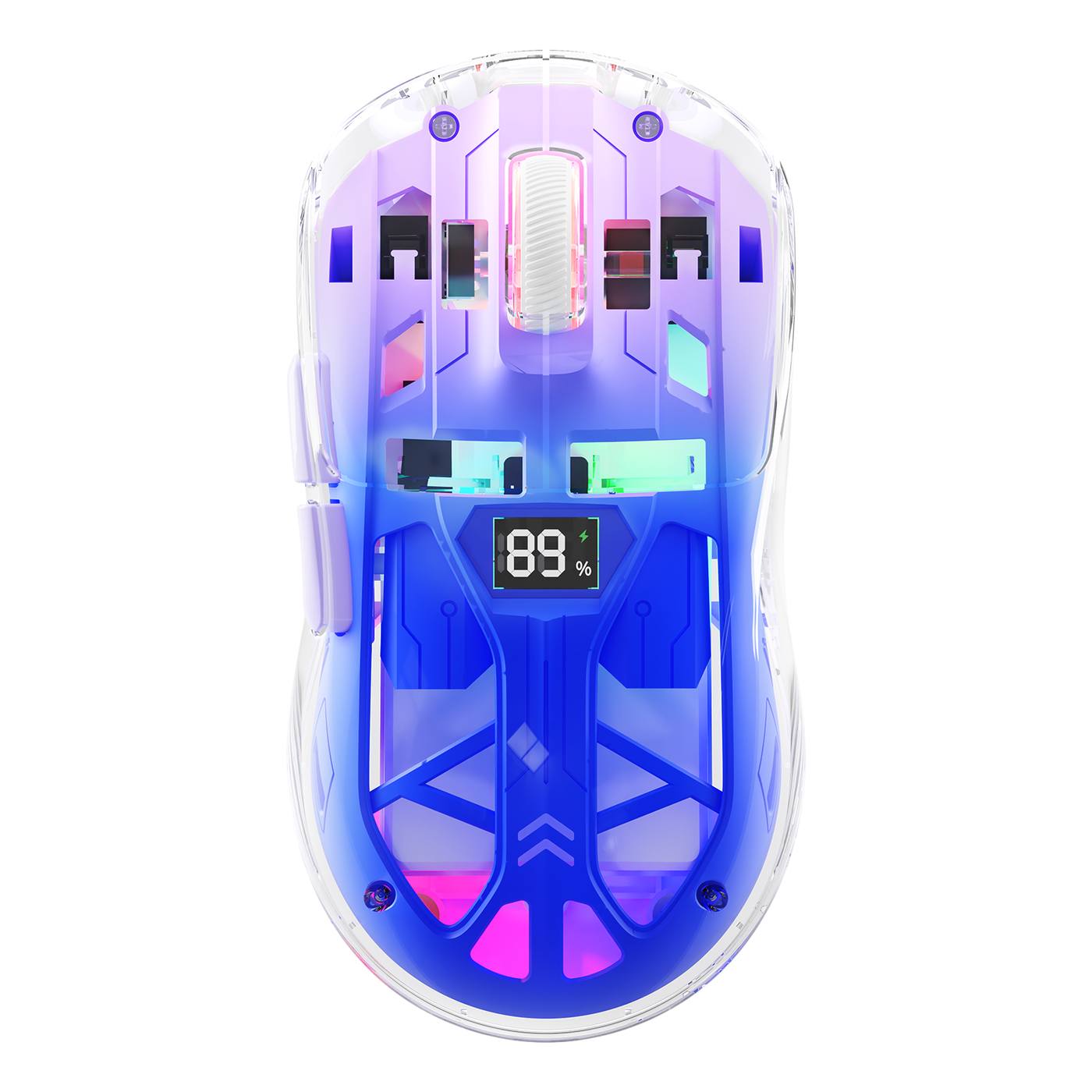
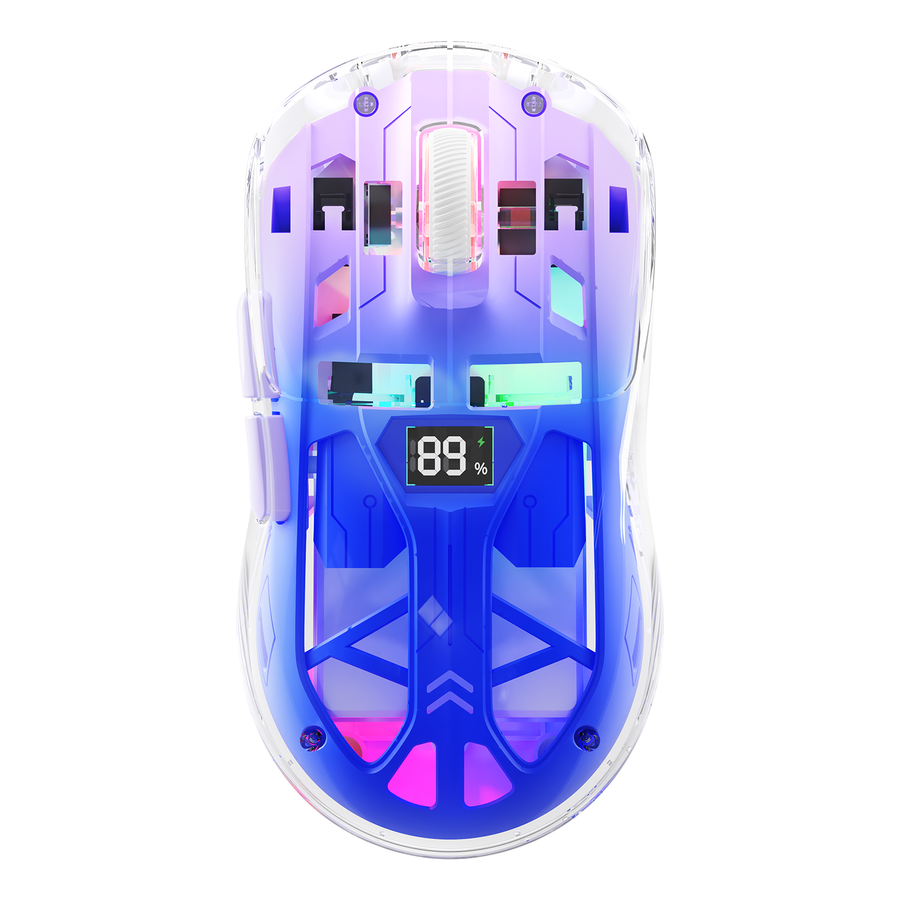
A rechargeable wireless mouse or keyboard lasts longer when you reduce avoidable active and standby drain, charge it according to the model's documentation, and test one change at a time. For daily runtime, start with lighting, idle behavior, performance activity, and connection conditions. For long-term battery care, avoid universal charging rules, use compatible equipment, and treat unusual heat, swelling, damage, or abnormal charging as reasons to stop using the device and seek support. The goal isn't to disable every useful feature; it's to keep the least active configuration that still works for your games, work, and travel routine.

Start With the Biggest Wireless Power Drains
The fastest way to improve wireless mouse battery life is to identify what is actually consuming power on your device before lowering settings that matter to your play. Compare similar sessions and change only one variable at a time.
- Lighting: Turn off lighting that provides no useful visibility or identification. If you still want it, compare a static, dimmer, or smaller-zone effect with a more active animation. The result depends on the model, so treat this as a test rather than a guaranteed saving.
- Polling and performance activity: Keep the performance level required for competitive play. For general gaming, work, or browsing, test a less demanding supported configuration only if it still feels responsive. Do not assume a lower setting will produce a fixed number of extra hours.
- Repeated wake-ups: A mouse or keyboard that wakes frequently during short pauses may use more power than one that remains asleep. Check idle behavior and wake reliability together; a timer is not useful if it interrupts your workflow or fails to wake consistently.
- Connection conditions: Receiver placement, interference, and connection mode belong in troubleshooting when behavior is inconsistent. They do not prove a universal battery penalty. If the receiver is buried behind a computer or near a crowded wireless area, test a clearer placement before concluding that the battery is failing. See these RF power factors for a related explanation.
Use a short log for two or more comparable sessions:

| Log item | Record |
|---|---|
| Device and connection | Mouse or keyboard; 2.4 GHz, Bluetooth, or wired if supported |
| Active features | Lighting mode, sleep behavior, and performance setting |
| Session conditions | Similar game, work task, and approximate session length |
| Result | Battery indicator before and after, plus any wake or connection issue |
After the first comparison, keep a change only when it improves your actual routine without hurting responsiveness, visibility, or reliability. This is a practical way to maximize gaming peripheral battery life without sacrificing the feature that made the device useful.
Build Better Charging Habits for a Rechargeable Wireless Mouse
The most dependable way to charge a rechargeable wireless mouse is to check its manual, use the specified equipment, and top it up before a long session or trip. USB-C makes the connector familiar, but it does not automatically establish charging speed, pass-through use, cable requirements, or power-source compatibility.
- Check the model instructions first. Look for the approved charging method, indicator behavior, cable requirements, and whether wired operation while charging is documented. If the manual is unclear, do not infer a feature from the shape of the port.
- Use compatible charging equipment. A known-good cable and the power source recommended for the device are safer choices than treating every USB-C cable or charger as interchangeable. General charging safety guidance is a boundary, not a specification for your mouse.
- Top up before the interruption point. Charge while you are awake and available to check the device before a long ranked session, workday, LAN event, or flight. This is more practical than waiting for a low-battery warning during play, and it avoids relying on a universal percentage that does not apply to every model.
- Inspect intermittent charging. If charging starts and stops, try the documented cable and another compatible port or power source. Check the port for obvious debris without inserting tools or modifying the device. If the behavior remains abnormal, stop treating it as routine optimization and contact the manufacturer.
- Separate general battery care from product rules. Broad lithium-ion guidance notes that repeated deep draining and staying fully charged for long periods can reduce usable lifespan, but it does not justify one universal percentage or schedule. The general lithium-ion charging guidance should remain background context; your model's instructions control.
A USB-C rechargeable gaming mouse can be convenient for desk use and travel, but the connector alone cannot tell you whether it supports fast charging, wired play during charging, or a particular runtime. Verify those details before buying around them. For navigation to a mouse described with a battery display, see this battery-level wireless mouse; do not treat the link as proof of a specific charging feature.
Tune Sleep, Lighting, and Performance Settings
Tune sleep, lighting, and performance separately. The right choice is the least active configuration that still meets your visibility, responsiveness, and wake-behavior needs—not automatically the lowest setting available.
Set Sleep Timers Around Real Desk Habits
Use a sleep timer that matches genuine pauses, then verify that the device wakes reliably before relying on it during a session.
- Set the timer in the device software or documented control.
- Save the setting and pause for the interval you normally leave the desk.
- Test wake-up with the action you actually use, such as moving the mouse or pressing a key.
- Test again before travel or storage, because a setting that suits a desk may not suit a packed receiver-and-cable setup.
If wake behavior is inconsistent, restore the previous setting and check software or firmware documentation instead of assuming the battery is the only problem. This guide to smart sleep timers can provide related reading, but its title does not establish behavior for every model.
Choose Lighting That Serves a Purpose
Choose lighting in this order, from least active to most active:
- Off: Best when you do not need visual feedback and are focused on reducing active features.
- Static or dim: Useful when you want to identify a device or maintain a small amount of desk visibility.
- Zone-limited: A practical compromise when only a portion of the keyboard or mouse needs illumination.
- Animated effects: Keep these when they are part of your setup's purpose, then compare them with a similar session rather than assuming the change will materially alter runtime.
Confirm whether the mouse and keyboard expose separate lighting controls. A setting that changes the keyboard may not change the mouse, and vice versa. These RGB lighting trade-offs are a useful buying consideration, not a universal battery test.
Balance Polling and Wireless Performance
Choose performance based on the task, then verify the result under comparable conditions.
| Use scene | Required performance | Possible adjustment | Verification action |
|---|---|---|---|
| Competitive play | Preserve the responsiveness and connection behavior you rely on | Avoid changing a critical setting during ranked sessions | Test any change in practice or noncompetitive play first |
| General gaming | Keep smooth input without automatically using the most active mode | Try a less demanding supported setting | Compare the same game and approximate session length |
| Work and browsing | Prioritize reliable wake behavior and comfort | Use a practical idle or performance setting | Check wake-up after several normal pauses |
| Travel or storage | Prioritize predictable connection and recovery | Use documented travel, sleep, or connection controls | Test the packed setup before leaving |
Before blaming battery capacity, check receiver placement and connection conditions. If a setting change improves a log but makes input unreliable, it is not a useful battery solution for that workflow.
Match Battery Habits to Your Peripheral Setup
Battery priorities change with the device and scene. A mouse used continuously needs a pre-session charging plan; a keyboard that sits idle needs closer attention to sleep and lighting; a travel setup needs a complete connection and charging fallback.
| Setup | Main drain to investigate | Charging check | Connection check | Recommended routine |
|---|---|---|---|---|
| Rechargeable wireless mouse | Continuous active use, lighting, performance activity, or repeated wake-ups | Confirm the manual's cable and power-source requirements; top up before a long session | Test receiver placement and the documented wireless mode | Keep a cable accessible, log comparable sessions, and retain only settings that help without reducing responsiveness |
| Wireless gaming keyboard | Idle behavior, lighting, and frequent wake-ups between work and play | Verify whether wired use while charging is documented rather than assumed | Check the receiver, connection mode, and wake reliability | Set sleep around real desk pauses and test the keyboard after storage or travel |
| Travel or LAN setup | Limited charging access and missing equipment | Pack the specified cable and a compatible power option; check charge status before leaving | Pack and test the receiver, connection mode, and any documented fallback | Do a pre-departure check and avoid depending on an unverified pass-through or wired mode |
When comparing a future purchase, look beyond a headline runtime claim. Check whether the manufacturer documents battery status, sleep controls, connection modes, charging access, wired operation, support, and warranty terms under conditions you can reproduce. For browsing categories, you can compare a wireless mechanical keyboard, rapid-trigger keyboards, or magnetic switch keyboards, but those links are for navigation—not proof of battery performance.
A feature is not a fit when it is undocumented, requires charging access you will not have, or creates a performance trade-off you cannot accept. That comparison rule is more reliable than choosing solely by connector type or a runtime number measured under unknown conditions.
Use a Simple Battery-Longevity Checklist
Maximizing battery lifespan means managing both usable runtime between charges and longer-term capacity retention. Use observable checks to improve the first, follow model instructions to support the second, and escalate safety issues instead of attempting an internal repair.
Before a long session
- Check the battery indicator and charge while you are available to monitor the device.
- Pack the compatible cable and confirm that the receiver or alternate connection is ready.
- Restore any setting you changed for testing if it could affect competitive responsiveness.
- Test the setup before a LAN event or trip rather than discovering a connection problem on site.
After gaming or work
- Turn off or reduce supported active features that you do not need while the device is stored.
- Use a documented sleep or power control, and verify that it does not create repeated wake-ups.
- Store the receiver and cable where they will not be forgotten for the next session.
During periodic troubleshooting
- Compare the current behavior with a similar session instead of diagnosing a battery from one short run.
- Test a compatible cable and port, then check receiver placement, connection mode, software, firmware, and documented reset steps.
- Isolate one variable at a time so a cable, port, or software issue is not mistaken for battery decline.
Before replacing the device
- Contact manufacturer support when usable runtime remains sharply reduced after the basic checks or when charging stays inconsistent.
- If the device becomes unusually hot, swollen, physically damaged, or otherwise abnormal, stop using it and follow the manufacturer's instructions. The CPSC battery guidance supports treating these signs as an escalation boundary, not ordinary wear.
- Do not open, modify, or continue testing a damaged battery. At end of life, use manufacturer or local recycling instructions; the EPA's lithium-ion battery guidance explains why these batteries should not be placed in household trash.
Start with the issue most likely to interrupt your next session: charge access, standby drain, lighting, performance activity, or connection quality. Audit that variable, verify the manual, and consider replacement only after the current device has been tested methodically.
FAQs
Battery questions often depend on the model and how the device is used. The answers below focus on the product-specific checks that matter before you change a charging or usage routine.
Can I Leave My Wireless Gaming Mouse Plugged in Overnight?
Check the manual first. If it does not address overnight charging, charge while awake and available to check the device. Consumer lithium-ion safety guidance offers general context, not a rule for every mouse.
Why Does My Wireless Mouse Lose Charge While It Is Turned Off?
Confirm the switch is fully off, review sleep settings, and follow the manual's storage guidance for the receiver. Repeat the test before diagnosing the battery.
Does Using a Wireless Mouse While It Charges Damage the Battery?
Check whether the model documents wired or pass-through use. If it does not, treat the cable as charging-only rather than assuming normal wired play.
When Should I Replace a Wireless Gaming Peripheral Battery?
Test the cable, port, receiver, connection mode, software, and documented reset steps. Contact support if reduced runtime persists across comparable sessions or charging remains abnormal.
Does a USB-C Connector Guarantee Faster Charging for a Gaming Mouse?
No. USB-C identifies the connector, not charging speed, cable requirements, pass-through support, or runtime. Verify those details in the product documentation.