The right gaming desk depth is the shallowest option that fits your complete setup without crowding the front edge or blocking the room. That means measuring the monitor, gaming keyboards, mousepad, cable path, chair position, and walking clearance—not choosing a desk based on monitor size alone. A deeper surface can add flexibility for broad mouse movement or multiple devices, but it can also use valuable floor space and push the display farther back. Use your actual equipment and a tape mock-up to find the best fit.

Why Desk Depth Matters for Gaming Monitors
Desk depth determines how much usable surface remains after you place the monitor stand or arm, rear cables, keyboard, and mouse area. It also affects where the monitor sits relative to your chair. General workstation setup guidance treats the monitor, keyboard, mouse, and seated position as connected checks.
Start with usable depth, not the number in a product listing. A listed front-to-back dimension may include space occupied by a stand, arm clamp, cable bend, speakers, or the gap needed between the wall and rear hardware. The remaining area is what your hands and keyboard can actually use.

A shallow desk may work well in a bedroom, dorm, or home-office corner with one monitor and compact equipment. It leaves more walking clearance but offers less room for an extended mousepad, rear ports, or a keyboard positioned away from the front edge. A deeper desk offers more layout choices only if the room can handle the extra footprint and the monitor remains workable from the intended seated position. A seated monitor check is more useful than assuming deeper is automatically better.
How Gaming Keyboards and Mousepads Use Space
Your required surface comes from the equipment you actually use together. Measure the gaming keyboards, any wrist support, and the mousepad in their normal playing positions, then account for the monitor hardware and cable path that reduce the advertised surface.
Keyboard Position and Wrist Support
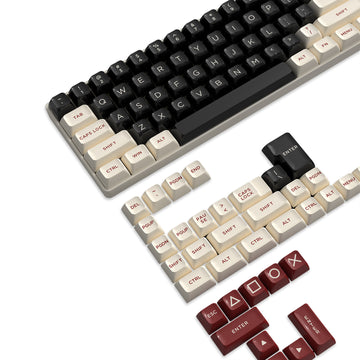
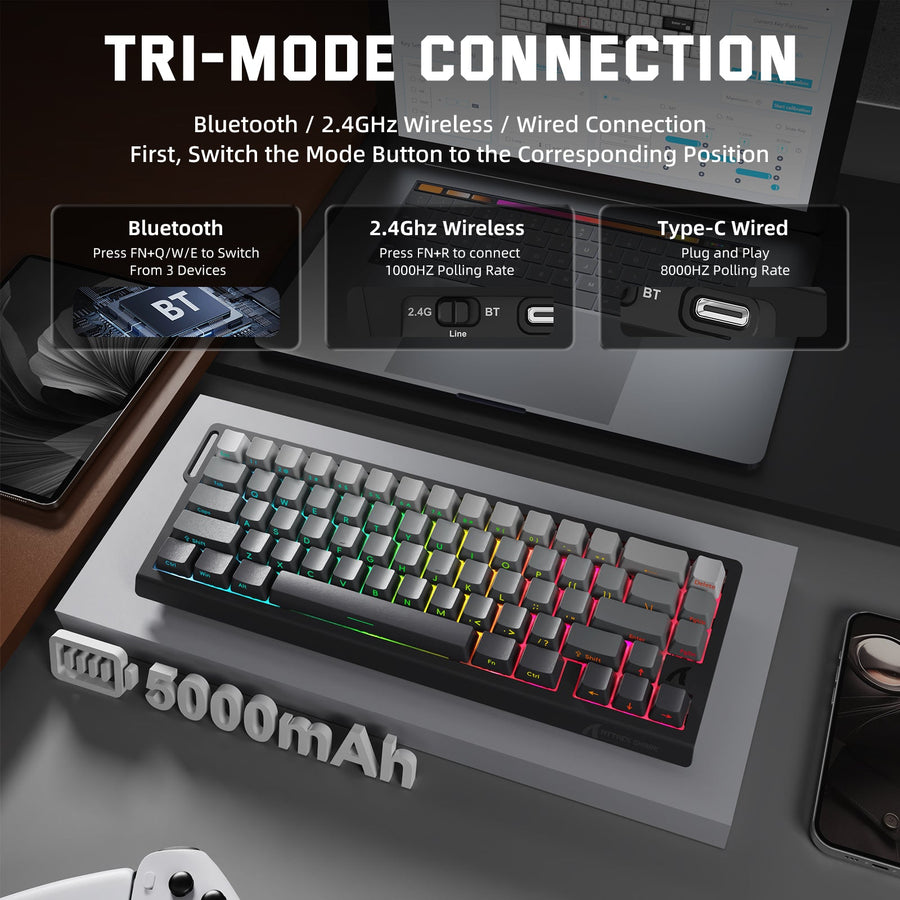
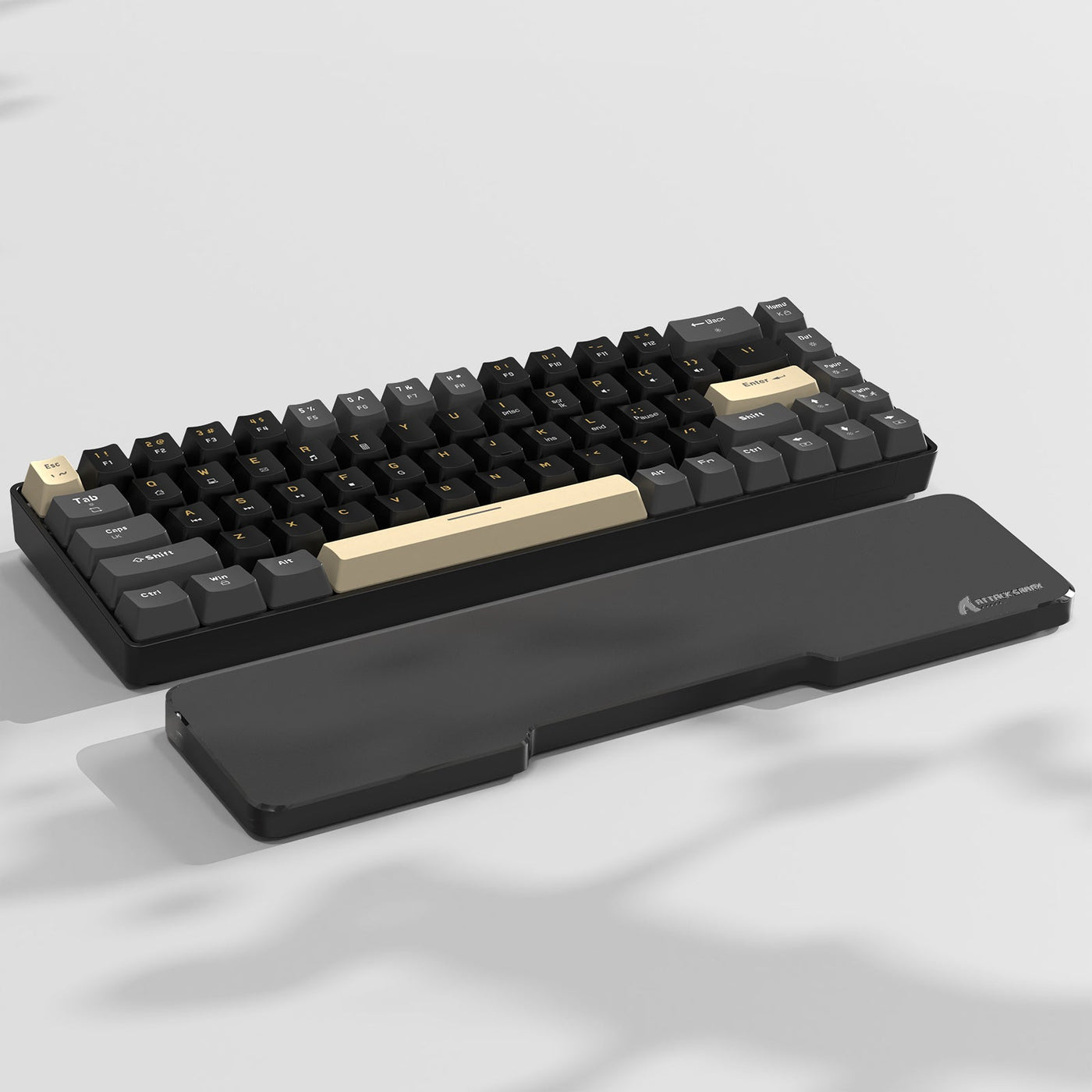
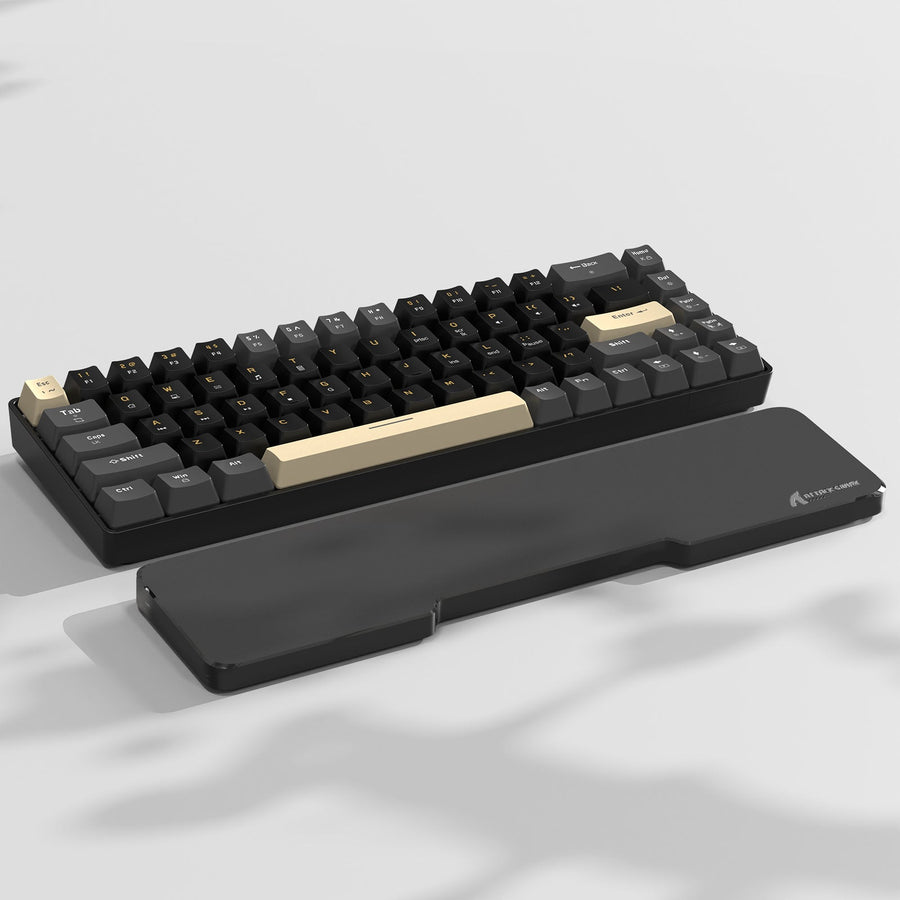
Place the keyboard where you can use it without reaching or crowding the mouse area. Keyboard format matters: a compact board may leave more side-to-side room, while a full-size board or separate number pad takes up more of the central surface. A wrist rest also extends the front-area footprint, so include it if it stays on the desk during play.
The goal is not to assign a universal keyboard depth or promise a comfort result. Instead, sit in the intended chair and check whether the keyboard and mouse can stay in a relaxed, usable position. If the keyboard only fits when pushed against the front edge, the desk is not providing much practical depth even if the listing looks adequate. You can compare keyboard accessories after establishing the desk layout, rather than using an accessory to compensate for a poor fit.
Mousepad Size and Mouse Movement
Measure the mousepad's full travel area, including the space needed to reset the mouse without hitting the keyboard, monitor stand, or desk edge. A compact layout may leave more room for other equipment, while a medium or extended surface may better suit broad-arm movement but require more open desktop space.
| Mousepad layout | Surface footprint | Keyboard relationship | Mouse-travel implication | Shallow-desk fit | Deeper-desk fit | Main tradeoff |
|---|---|---|---|---|---|---|
| Compact | Uses less open surface | Usually leaves more room beside the board | More limited travel area | Often easier to place | Leaves room for other items | Less tolerance for broad movement |
| Medium | Balances pad area and nearby equipment | May sit beside or partly near the keyboard | Supports more movement than a compact layout | Works when rear hardware is modest | Usually easier to position | Requires a deliberate keyboard position |
| Extended | Occupies substantial front and side space | May sit under or directly beside the keyboard | Provides the most open surface of these options | Can crowd the front edge | More flexible if circulation remains clear | Reduces room for speakers, paperwork, or other devices |
For a concrete surface example, measure the exact pad you own or compare its footprint with a CM02SE gaming mousepad. The link is a product-navigation option, not a universal size recommendation; your normal mouse movement is the deciding factor.
Cable Clearance and Monitor Hardware
Check these items in order before counting any remaining desktop as usable:
- Monitor support: Measure the stand's base or identify where the display will sit if it uses an arm.
- Arm clamp: Confirm that the rear edge can accept the clamp without colliding with a wall or frame.
- Cable bend and wall gap: Leave room for ports, power cables, and bends instead of pressing the desk against the wall.
- Keyboard position: Place the board after accounting for the rear hardware.
- Mousepad edge: Mark the full travel area and its nearest obstacles.
- Chair reach: Sit down and verify that the monitor, keyboard, and mouse remain workable from the chair.
A wrist rest can be part of the measured footprint, but its presence does not establish a required desk depth or guarantee ergonomic comfort. If you use one, include the actual item; acrylic keyboard wrist rest is an example of the type of accessory whose footprint should be checked before purchase.
Shallow, Standard, or Deeper: Which Desk Fit Makes Sense?
Compare desk categories by usable placement area and room footprint, not by a universal inch range. Choose the category that lets the monitor, gaming keyboards, mousepad, cables, and chair position work together while preserving circulation.
| Desk-fit category | Room footprint | Monitor-placement flexibility | Keyboard and mousepad room | Likely tradeoffs | Best-fit scenario |
|---|---|---|---|---|---|
| Shallow | Easier to fit in compact rooms | Less tolerance for rear hardware and repositioning | Works best with a measured, compact layout | Front edge may become crowded; less spare surface | Single-monitor bedroom, dorm, or small office corner |
| Standard | Usually balances equipment and floor space | Moderate flexibility for a typical setup | Accommodates more layouts without treating the category as universal | May still be tight for extended surfaces or several devices | General gaming setup with one monitor and planned equipment |
| Deeper | Uses more floor space | More room for stands, multiple devices, or work materials | More tolerance for broad mouse movement and mixed-use items | Can reduce walking clearance or place the monitor farther back | Larger room or gaming-and-home-office setup with verified circulation |
A deeper category is not automatically a better choice. If it pushes the chair into a walkway, blocks a door or drawer, or makes the monitor difficult to use from the supported seated position, the added surface is working against the room. For readers comparing mouse surfaces, an XL and desk mat comparison can provide follow-up context, but it does not replace measuring your own pad and desk area.
Measure Your Full Gaming Setup Before Ordering
Use painter's tape, cardboard, or a temporary surface to make the proposed footprint visible before you buy. The sequence below measures the layout you will use instead of assuming the seller's listed dimensions equal usable gaming space.
- Mark the wall and room boundaries. Outline the desk's proposed position, then note walking paths, doors, drawers, windows, and nearby furniture. Include the chair's footprint and the space needed to pull it out.
- Measure the monitor support and rear clearance. Place the stand or mark the arm clamp position. Account for rear ports, cable bends, power access, and the gap needed between the desk and wall.
- Place the monitor in its intended position. Center the primary display with the main keyboard and mouse area, then sit in the chair. Ergonomic workstation guidance supports checking the monitor from the real seated position rather than applying a rigid viewing-distance rule.
- Place the keyboard and wrist support. Use the actual gaming keyboards and any wrist rest you keep on the desk. Mark the front edge and confirm the board is not forced against it.
- Map mousepad travel. Tape the pad's full outline, including the area needed for normal movement and resets. Check for collisions with the keyboard, monitor stand, speakers, or desk edge.
- Test seated reach and monitor position. Sit in the intended chair with your back supported as you normally use it. Confirm that the monitor, keyboard, and mouse remain workable without leaning forward or sacrificing the mouse area. Treat this as a practical self-check, not a comfort guarantee, consistent with workstation setup guidance.
- Check circulation and power access. Walk through the room, open doors and drawers, reach outlets, and verify that the chair does not block a required path. A desk that fits the equipment but fails this step is not a good fit for the room.
- Compare the result with usable desk dimensions. Measure from the rear clearance point to the front edge and from side to side. Compare those measurements with the seller's listed desktop dimensions, frame placement, cable openings, return terms, shipping conditions, and warranty details.
This mock-up also exposes hidden tradeoffs. A desk can hold every item on paper yet leave too little front area for the mousepad, or add depth while making the monitor position and room circulation worse.
Choose Desk Depth by Layout, Not a Single Number
Buy the shallowest desk that passes the complete equipment, seated-reach, and room-clearance checks. Depth alone cannot guarantee ergonomic comfort; desk height, chair adjustment, monitor placement, and the way you use the keyboard and mouse also matter, as explained in office ergonomics guidance.
Use this final purchase checklist:
- Identify the monitor arrangement: One display, multiple displays, a laptop, or a monitor arm can change the rear and side footprint.
- Map gaming keyboards and mousepad space: Use the real keyboard, wrist support, pad, and movement area instead of generic equipment categories.
- Account for rear clearance: Verify stands, clamps, ports, cable bends, wall distance, and outlets.
- Test seated reach: Sit in the intended chair and reject a layout that requires leaning forward, crowding the front edge, or losing normal mouse movement.
- Verify room circulation: Check walkways, doors, drawers, chair movement, and mixed-use work materials.
- Confirm purchase terms: Compare usable dimensions with the listing and review shipping, returns, and warranty coverage before ordering.
If you are still comparing support accessories, wrist rest options can be a secondary navigation path, but an accessory should not be used to justify a desk that fails the full layout test. For a gaming-and-work setup, leave the work materials in place during the mock-up. In a compact room, prioritize circulation even when a deeper desk appears to offer more flexibility.
FAQs
Use these questions to check room size, monitor hardware, aiming style, and mixed-use layouts after measuring the main setup.
Can a Gaming Desk Be Too Deep for a Small Room?
Yes. Extra depth can reduce walking clearance, interfere with doors or drawers, and change the monitor's relationship to the chair. Tape the front edge and sit in the intended position before ordering. If the display only works after moving the chair into a walkway, the deeper layout is a room-fit failure.
How Do I Measure Desk Depth When the Monitor Uses a Stand?
Start at the actual rear point needed by the stand and its cables, not at the wall or the listing's nominal edge. Place the keyboard, mousepad, and wrist support normally, then measure to the front edge. This captures the stand's footprint and usable front area together.
Does a Monitor Arm Let Me Use a Shallower Desk?
It may reduce the desktop area occupied by a monitor base, but it does not remove the need to verify clamp space, wall clearance, cable routing, and viewing position. Check the arm's mounting requirements separately, then repeat the keyboard and mousepad mock-up. A smaller stand footprint does not make every shallow desk compatible.
Should I Choose a Deeper Desk for Low-Sensitivity Mouse Control?
Possibly, but measure the actual pad and movement path first. Low-sensitivity play may use more open surface, while keyboard placement and personal preference determine how much is practical. Mark the complete travel area and reject a desk where the mouse repeatedly reaches the edge or collides with another device.
What Desk Depth Works Best for a Gaming and Home Office Setup?
Use the layout that fits gaming equipment and work materials at the same time. Add the laptop, paperwork, dock, or other work items to the tape mock-up, then test both tasks from the chair. If work materials must be removed every time you play, or gaming equipment blocks necessary office space, the desk does not support the intended mixed-use arrangement.