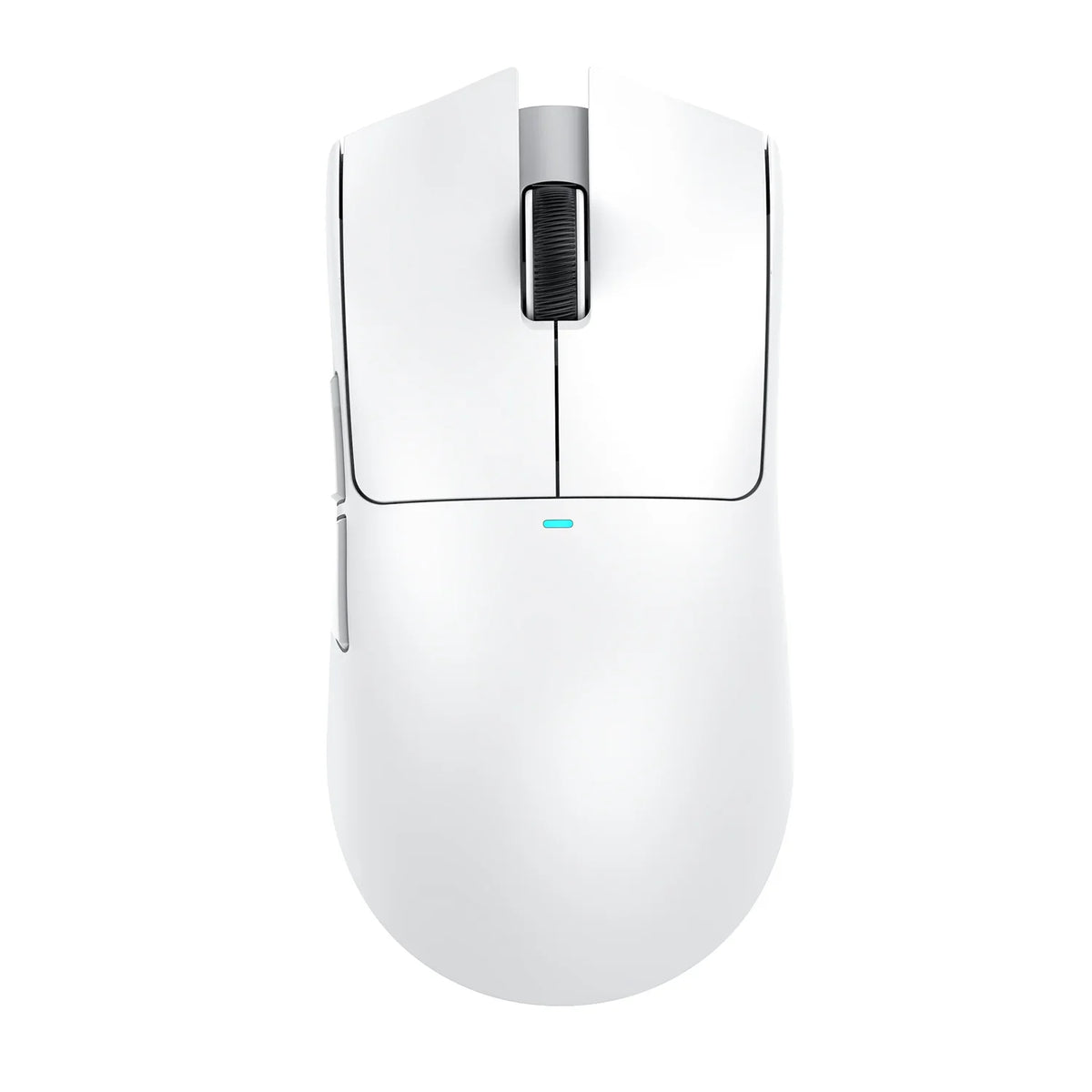
Scroll wheel skipping is easiest to diagnose when you can repeat it the same way every time and change only one condition between tests. Start in the app where it happens and compare it with another app. Then check your operating-system scroll settings, look at the wheel from the outside, and test the connection.
Each result is a clue about where the problem shows up. It is not proof that a specific part has failed. If the skipping keeps following the mouse, the notes you take along the way become the record our support team needs.
Start by reproducing the skipped scroll
You need a baseline before you touch any setting or cable. Use one scroll action you can repeat exactly, such as slowly rolling through a game menu or a long web page, and write down what you see.

- Open the app where the wheel skips. Note its name and the exact place it happens, like a weapon menu, an inventory list, or a document.
- Do the same scroll action several times. Use the same speed and the same number of notches each time.
- Name the symptom. Record whether the wheel misses input (you roll it and nothing moves), jumps (the page moves farther than expected), or moves in the opposite direction for a moment.
- Repeat the identical action in a second app. A browser or text document works well. Note whether the same symptom appears.
- Write down your setup. Include your operating system and how the mouse connects: a wired USB cable, a USB wireless receiver, or Bluetooth. Note if a USB hub is involved.
- Optionally, check the wheel in a neutral page. Our online scroll-wheel test gives you the same simple page every time, which helps you compare results before and after each change.
Keep these notes as observations. A wheel that skips in one app but not another shows an app-limited pattern. That tells you where to look next, but it does not prove the app caused it.
From here on, change one thing, repeat the same scroll action, and record the result before you move on.
Check application and operating-system scroll settings
Settings change how far and how fast content moves per wheel notch, so check them before you look at the hardware. They will not tell you whether the wheel itself is missing input, but they remove one variable.
Check only documented scroll controls in the affected app
If the skipping shows up in just one app, look in that app's own settings or help pages for scroll options. Games and creative tools sometimes have their own scroll or menu-navigation settings. Only change options the app actually documents. Note the original value, change one setting, and repeat your baseline scroll. If nothing changes, set it back so your next test starts from a clean point.
On Windows, inspect the documented wheel controls
Microsoft's guide to Windows mouse-wheel controls gives the path as Start > Settings > Bluetooth & devices > Mouse. In the Scrolling section, you can set how many lines the screen scrolls for each wheel notch, choose the scrolling direction, and turn scrolling inactive windows on hover on or off. Write down each value before you change it. A direction setting you didn't expect, or a very high lines-per-notch value, is worth noting in your record. If you want to adjust other pointer options while you're there, our mouse settings guide covers button and speed changes on Windows and Mac.
On Mac, check Scroll speed
Apple's Mac Scroll speed setting is under System Settings > Accessibility > Pointer Control > Mouse Options. The Scroll speed slider changes how quickly content moves when you scroll. Apple also notes that to change Mouse or Trackpad settings, you must have a wireless mouse or trackpad connected to your Mac, or be using a Mac with a built-in trackpad. If the option isn't available to you, record that and move to the next step. Change the slider in one small move, then repeat your baseline scroll.
Inspect the wheel exterior without opening the mouse
A visual check is safe and quick, and it can add a useful clue. A general mouse troubleshooting guide from iFixit notes that dust and debris may interfere with wheel movement by jamming the wheel in its housing or keeping the wheel sensor from registering movement.
Unplug or power off the mouse. Then look at the gap around the wheel under good light and roll it slowly with your finger. Note whether you can see dust, hair, or crumbs, and whether the wheel feels gritty or uneven compared with when it was new. Visible debris is one possible explanation, not a confirmed cause.
Before you clean anything, find your exact mouse model and follow only the exterior cleaning method its manufacturer documents. Do not open the mouse, spray anything into it, or apply lubricant based on generic advice. If you have no model-specific instructions, record what you saw and continue with the connection checks.
Isolate the connection and test on another computer
Connection checks depend on how your mouse connects, so run only the branch that matches your setup. Make one change, repeat your baseline scroll, and note whether the symptom changed.
If a USB mouse is connected through a hub
This branch applies only to a mouse plugged in through a USB hub, dock, or extension.
- Unplug the mouse from the hub and try a direct computer port instead, as the iFixit guide suggests.
- Repeat the same scroll action in the same app.
- Record whether the skipping stopped, changed, or stayed the same.
If the mouse is wireless
First note whether your mouse uses a USB wireless receiver or Bluetooth. The wired hub step above does not apply here.
On Windows with a USB receiver, Microsoft's Windows wireless USB receiver check is to unplug the receiver, wait about 10 seconds, and plug it back in. If the receiver sits in a hub, test it in a direct PC port as a separate change. If your mouse connects via Bluetooth, check Windows Bluetooth troubleshooting guidance for connection issues. Our guide to wireless signal congestion covers dongle placement and USB 3.0 noise if you want to adjust your desk layout.
These are general connection checks, not wheel-specific fixes. Retest the same scroll after each one. On macOS or another system, use guidance for that operating system and your mouse model rather than the Windows steps.
Use another computer only as an optional comparison
If you have access to a second computer, the iFixit guide suggests an optional test on another computer. Keep conditions as close as you can: same kind of app, same scroll action, same connection type. Record whether the symptom appears there too.
Interpret the pattern and prepare for support
Read your notes as a map of where the skipping shows up. If it appears in only one app and disappears elsewhere, the next place to look is that app's settings and documentation. If it stopped after a settings or connection change, note which single change made the difference and keep using that setup while you watch for a return.

If you test on a second computer and the issue continues there, the iFixit guide notes that persistence across computers makes an issue likely with the mouse. That persistence serves as a helpful clue pointing toward the mouse side, though it still does not identify which specific component failed.
When the behavior persists or the results are unclear, contact our support team with a short record like this:
- Mouse model and how long you've had it
- Operating system and version
- Affected apps, plus any app where the wheel worked normally
- Exact symptom: missed input, jumping, or reverse movement, and how often
- Connection setup: wired, USB receiver, or Bluetooth, and whether a hub was involved
- Checks completed: each setting or connection change you made, one per line
- What changed: whether the symptom stayed, improved, or got worse after each check, including the second-computer result if you ran it
Only list checks you actually did. A clear "tried, no change" is just as useful to us as a fix.
FAQs
Why should I change only one thing at a time?
If you change a setting and the connection together, you can't tell which one made the difference. Testing one change at a time, with the same scroll action each time, makes it easier to see how each adjustment relates to the symptom without jumping to conclusions about the root cause.
What should I do if the skipping stops after one change?
Keep the setup that worked and note exactly what you changed. Use the mouse normally for a while. If the skipping comes back, add when it returned and what you were doing to your record before contacting support.
Does an online scroll-wheel test prove the wheel is faulty?
No. A test page gives you a consistent place to repeat the same action and compare results before and after each change. Treat what you see there as one more observation alongside your app, settings, and connection results.