A gaming keyboard for Mac and Windows should be evaluated in four separate areas: basic key input, physical layout, connection and device switching, and advanced software features. Choose a full dual-OS fit if you regularly use both computers and need comfortable shortcuts and documented controls on each. Choose a Windows-first board if Windows gaming is the priority and you can live with compromises on Mac. Choose basic input compatibility if you only need reliable keystrokes on both systems.

Choose the Gaming Keyboard for Mac and Windows Compatibility Level You Actually Need
Start with your workflow, not a compatibility badge. Decide whether you regularly switch between a Mac and Windows PC, game mostly on Windows, or simply use the keyboard for everyday typing on both systems.
| Compatibility target | Choose it when | Minimum checks and acceptable compromise |
|---|---|---|
| Full dual-OS fit | You switch between Mac and Windows often and need shortcuts, connections, and required gaming controls to work well on both. | Confirm the layout, connection process, and every required software or onboard feature for both operating systems. |
| Windows-first gaming | You mainly game on Windows and use the Mac occasionally for work or typing. | Accept Windows-style legends, modifier workarounds, or limited Mac configuration only after confirming basic input, layout comfort, and connection compatibility. |
| Basic input fit | You need ordinary keystrokes on both computers and advanced controls are optional. | Confirm a workable connection and layout, but do not expect identical remapping, lighting, macros, profiles, or firmware workflows. |
This selector gives you the right standard for a gaming keyboard compatible with Mac and Windows. If the model's documentation does not cover a required Mac feature, keep it in the basic-input or Windows-first category instead of assuming full parity.

Confirm the Physical Connection and Switching Path for Both Computers
The keyboard must support the connection setup your Mac and Windows PC can actually use. Compare wired, Bluetooth, and 2.4 GHz options separately, then confirm the switching process rather than assuming that multiple connection modes make device switching effortless.
For wired use, match the cable and connector to the available ports, and check whether either computer needs a hub or adapter. For 2.4 GHz, identify the receiver, available USB port, adapter requirements, receiver storage, and steps for moving between computers. A product page that lists 2.4 GHz does not, by itself, confirm multi-device switching.
Bluetooth has its own platform requirements. On Mac, the keyboard must be discoverable and paired through Bluetooth settings using the accessory's documented procedure, as explained in Apple's Bluetooth pairing instructions. On Windows, the PC needs built-in Bluetooth support or a USB Bluetooth adapter, and the keyboard must be made discoverable according to its documentation, as described in Microsoft's Bluetooth pairing guide.
Before buying, write down the ports, Bluetooth support, receiver location, pairing steps, power requirements, and switching method for each computer. You can also follow the wireless setup guide for a separate setup reference, but the model's own instructions determine its pairing and switching behavior.
Connection and software are separate decisions. A keyboard can send basic input through a cable or wireless link while its remapping, lighting, macros, or firmware tools depend on a particular operating system or connection mode.
Match Key Legends, Modifier Positions, and Shortcuts to Your Daily Use
Choose the physical layout based on how often you use Mac shortcuts, not just on whether the keyboard produces keystrokes. A familiar layout is the easiest dual-use choice. A remappable Windows-oriented board can work if you accept a physical compromise, while an uncomfortable layout is best reserved for occasional Mac use or avoided altogether.
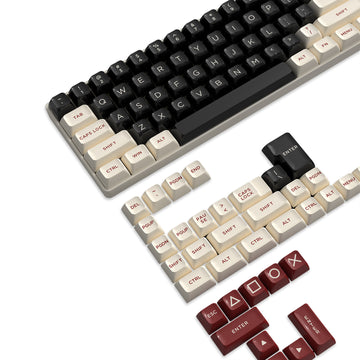
Check the product images and specifications for the key count, ANSI or other layout, legends, modifier positions, navigation keys, and gaming controls. For US buyers, ANSI is a useful detail to check because macOS recognizes ANSI, JIS, and ISO keyboard types and may ask you to identify the layout when the keyboard is not immediately recognized. A missing or awkwardly placed modifier can make everyday shortcuts less comfortable.
macOS modifier settings let you change what modifier keys do, which can reduce friction with a Windows-oriented board. Remapping does not change the keycap labels or physical positions, however. Apple also documents that, in relevant Mac shortcut workflows, Alt can substitute for Option and Ctrl or the Windows logo key can substitute for Command. These conventions and workarounds can help, but they do not guarantee that every board will feel like a Mac keyboard.
Use this choice boundary:
- Frequent Mac shortcuts: Favor a layout with comfortable modifier positions and clear legends, or documented remapping that fits your routine.
- Windows-first gaming with occasional Mac use: A Windows-oriented layout may be acceptable if basic input and common shortcuts remain manageable.
- Unclear layout or missing images: Do not assume Mac comfort. Inspect the product images or manual before checkout.
Apple's Mac shortcut guidance helps translate common Command and Option actions on a Windows-style board. Compare Mac and Windows key differences when reviewing labels and shortcut habits, then apply the model's physical layout rather than relying on a category description.
Separate Onboard Features From OS-Dependent Keyboard Software
Basic input is only the first threshold. For remapping, lighting, macros, profiles, firmware, actuation settings, or other gaming controls, identify what the keyboard can store or control onboard and what requires software on macOS or Windows.
Check What the Keyboard Stores Onboard
Look for instructions that identify onboard controls or memory and specify which settings they retain. A programmable key or RGB lighting does not prove that remaps, profiles, or lighting settings persist when you move the keyboard from one computer to another.
For every required feature, record how it is configured, whether the setting is saved to the keyboard, and whether that saved setting remains active on the other computer. If the instructions do not address persistence for the feature you need, treat persistence as unconfirmed.
Verify the macOS and Windows Software Path
Match each required feature with its configurator, driver, web tool, or firmware utility, then note the supported operating systems and connection mode. A keyboard may provide basic Mac input while its remapping, lighting, macro, profile, or firmware workflow is limited or undocumented on macOS.
An independent review of another cross-platform keyboard illustrates the distinction: one reviewed model offered multiple connection modes and Mac/Windows switching, while its customization tool required a wired connection. That is a model-specific example, not a rule for every mechanical keyboard for PC and Mac gaming.
If you plan to configure the keyboard on Windows and then use it on a Mac, determine which settings are stored onboard and which require software or a particular connection to remain available. You can check keyboard support downloads or review model driver support as starting points, but neither destination proves that a specific model supports a feature on macOS. When the model's materials do not identify Mac support for a required software feature, treat that feature as unconfirmed and the keyboard as Windows-first rather than full dual-OS.
Verify One Exact Model Before You Add It to Your Cart
Apply the compatibility level you chose at the start, then assess one model using its product and support pages. Current catalog examples can help you compare listed layouts and connection categories, but those descriptions do not establish complete Mac software support or feature parity.
- Record the two computers and required tier. Write down whether you need full dual-OS use, Windows-first gaming, or basic input. List every required feature, such as a shortcut, remap, lighting control, macro, profile, firmware tool, or onboard setting.
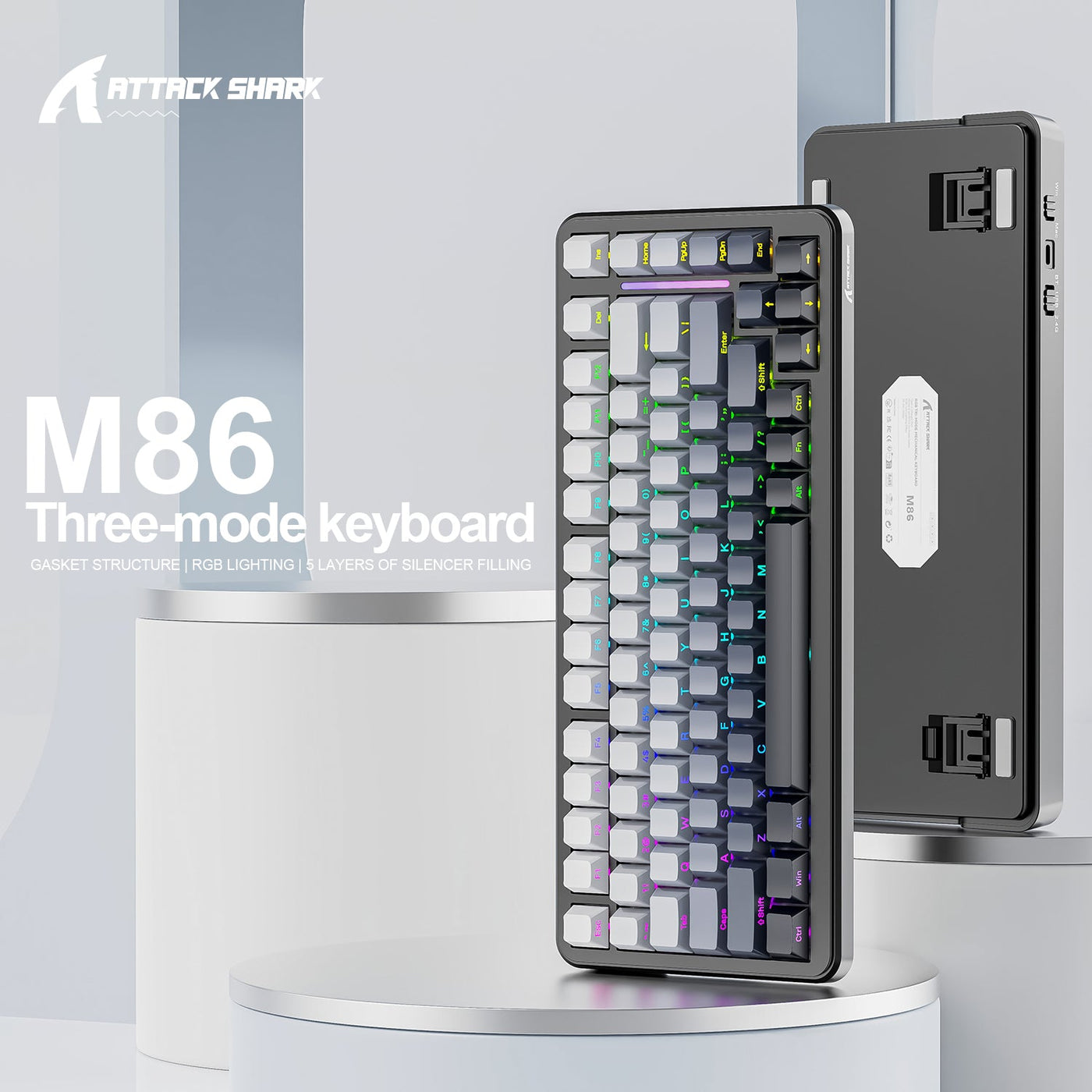
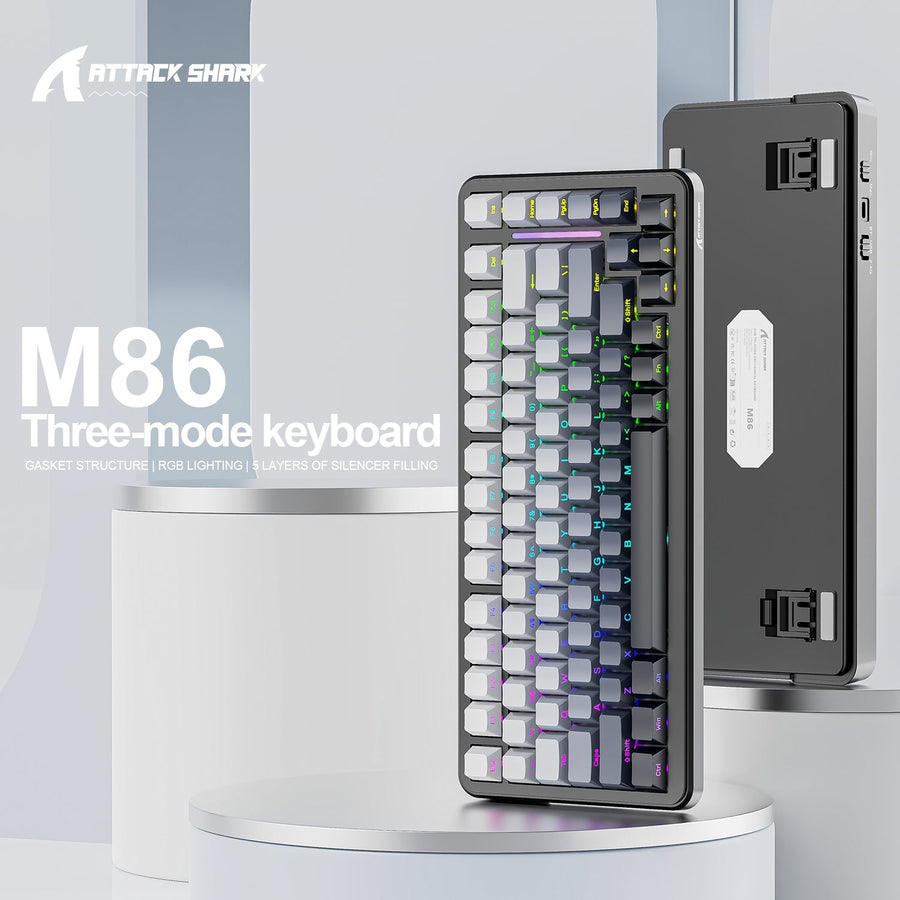
- Inspect the physical layout. Confirm the key count, ANSI or other layout, legends, modifier positions, navigation keys, and product images or manual. For example, the M86 is listed with a 75% ANSI layout, the K86 with a 75% ANSI US layout, and the X98 with 102 keys. These are layout descriptions, not proof of Mac feature parity. You can compare M86 layout, compare K86 wireless layout, or compare X98 full-size layout against your desk and shortcut habits.
- Confirm connection and switching. Match the listed wired, Bluetooth, or 2.4 GHz option to both computers. Note the cable, receiver, adapter, pairing steps, battery or power requirements, and published method for switching devices. The M86, K86, and X98 information supplied here lists wired, Bluetooth, and 2.4 GHz categories, but it does not confirm each model's switching routine.
- Map software, firmware, and onboard behavior. For every required control, identify the supported operating system, configurator or driver, connection-mode requirement, firmware path, and whether settings persist after you move the keyboard to the other computer.
- Resolve the last unknown before checkout. Keep the model name and both operating-system requirements beside the support material. If a required connection, layout detail, switching behavior, or software feature remains undocumented, stop the purchase decision or choose a model with clearer support information.
This process gives you a practical way to choose a gaming keyboard for Mac and Windows without treating a product-page label as a universal promise.
Gaming Keyboard for Mac and Windows FAQs
Can a Gaming Keyboard Work on Mac and Windows?
Yes, basic input can work on both when the connection and physical layout are supported. That does not guarantee identical shortcuts, wireless switching, remapping, lighting, macros, profiles, or firmware access. The model's connection, layout, and software documentation determine the broader fit.
Do Gaming Keyboard Drivers Support Mac?
Support varies by model and feature. A keyboard may type normally on a Mac while its driver, configurator, firmware tool, or advanced controls remain limited or undocumented there. Look for model-specific macOS and Windows support for each feature you need.
Can I Use a PC Keyboard on a Mac?
A PC-oriented keyboard can provide basic input on a Mac when its connection works and macOS recognizes its layout. Windows-style legends, modifier positions, shortcut habits, and software limits determine whether it is comfortable for regular use. macOS modifier remapping can help, but it cannot change the physical layout.
Is Bluetooth or 2.4 GHz Better for a Keyboard Used With a Mac and Windows PC?
Neither is automatically better. Choose the mode both computers support, then compare Bluetooth pairing or the 2.4 GHz receiver, available ports or adapters, power needs, switching behavior, and gaming requirements. Bluetooth pairing guidance does not establish how a model's 2.4 GHz receiver works.