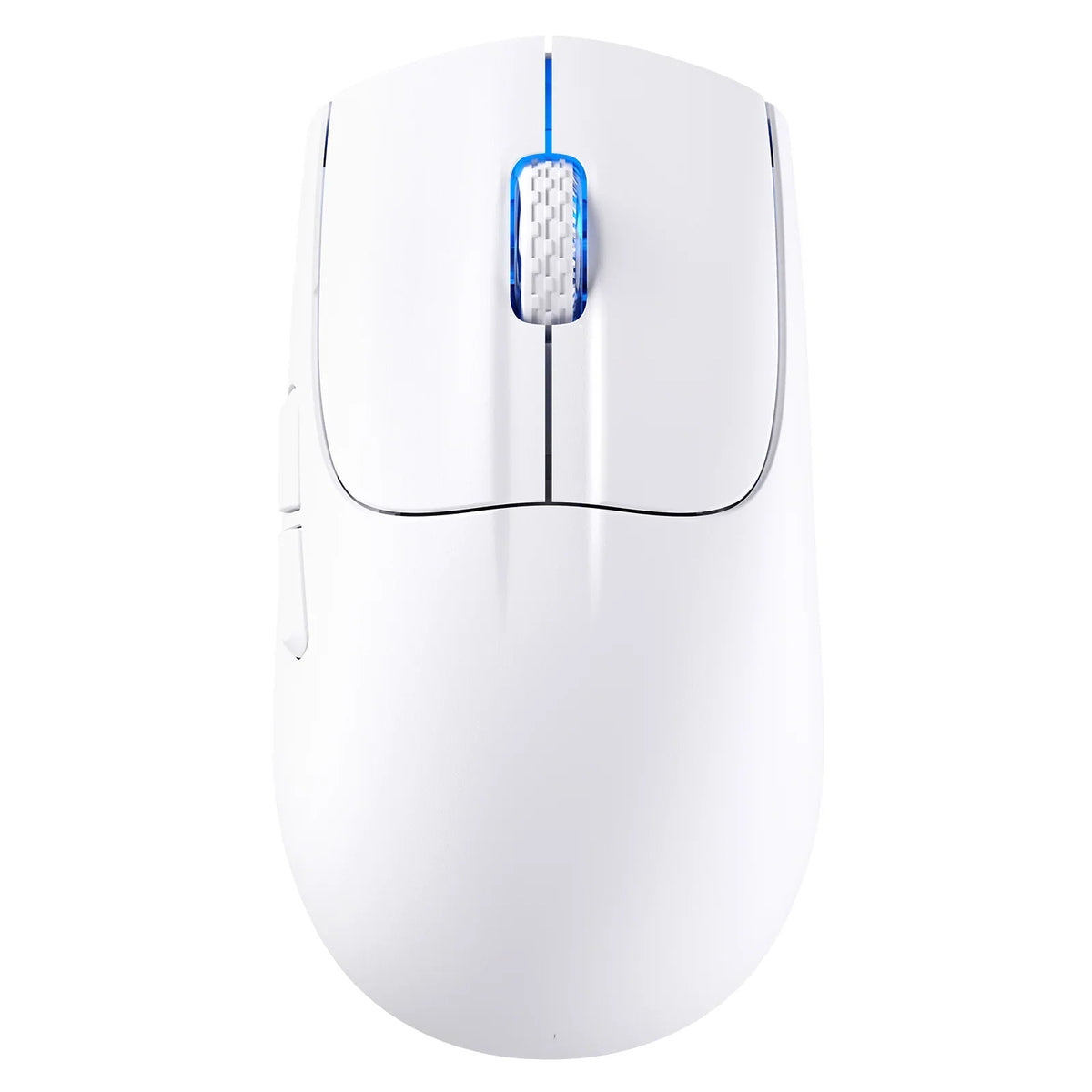
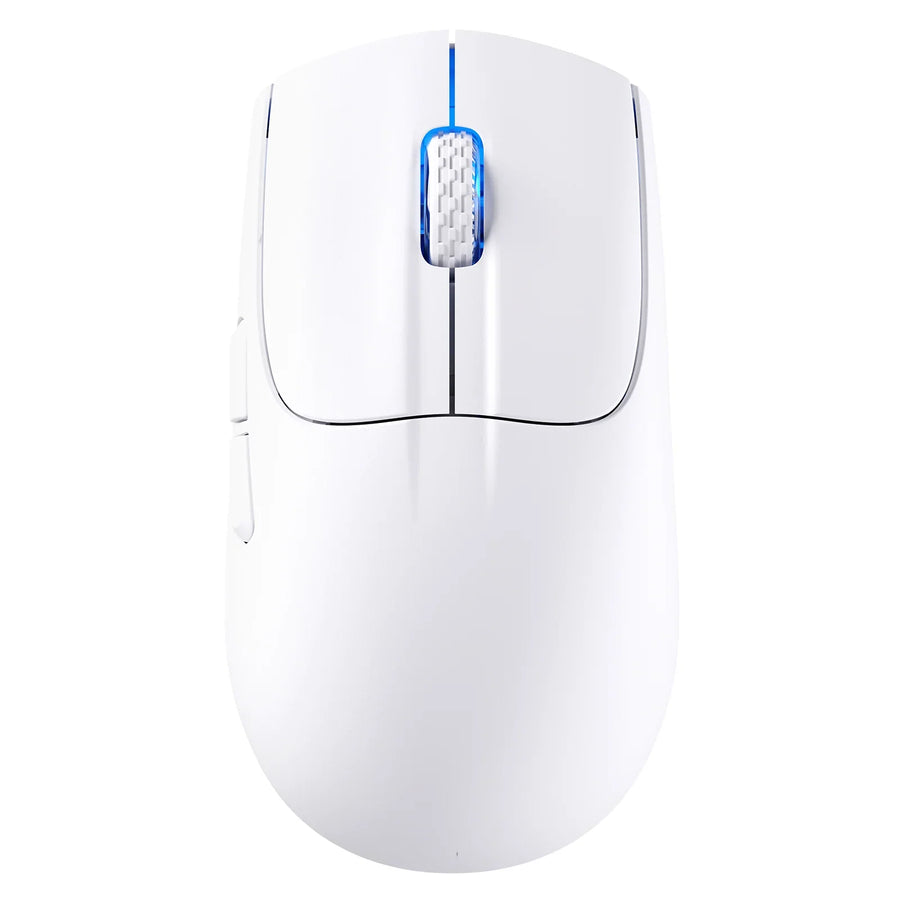
To control lighting on a gaming LED mouse without guessing, start with the exact model and revision. Then follow only the lighting instructions in that model's official manual or support page. If the documentation names a button control or a specific utility, use that path. If it says nothing about lighting, treat support as unconfirmed and don't try random software.
Windows users have one more check they can run themselves: see whether the mouse shows up in Dynamic Lighting. After any change, test whether it holds when you close the utility, restart, or reconnect.
Find your mouse's documented lighting-control path
The right control path is the one written down for your exact model. A forum post, a similar-looking mouse, or a utility for another product line doesn't count. Work through these steps in order:
- Identify the exact model and revision. Check the label on the underside of the mouse, the box, or your order confirmation. Write down the full model name plus any version, edition, or revision marker. One product family can include versions with different documentation, so the family name alone isn't enough.
- Match it to official documentation. Open the manufacturer's manual and its support or download page for that exact name. If the page lists several versions, pick the one that matches your label.
- Look for an explicit lighting instruction. Real confirmation is a specific button action for lighting, an official utility named for your model, or a stated operating-system integration.
- Sort the result. It's documented if the source tells you how to change lighting on your model. It's unconfirmed if it doesn't.
Pay attention to how much the documentation actually covers. As an illustrative example, a manual might describe a button that turns lighting on or off but never mention color or effects. In that case, on/off is the confirmed control. Color adjustment is still an open question, not a hidden feature waiting for the right app.
An unconfirmed result is a useful answer, not a dead end. It tells you to stop installing utilities built for other models and ask the manufacturer directly. A lit gaming LED mouse can still have fixed lighting that you can't change.

If you own one of our mice, our Driver Download page is where we post drivers, software, firmware, and user manuals for ATTACK SHARK mice and keyboards. You can also match your model name against our mouse support and downloads collection or our gaming mouse lineup. The manual for your specific model is what confirms its lighting controls. If those files leave lighting support unclear, contact our support team with your model and revision.
Use Windows Dynamic Lighting only when your mouse appears
Windows can control lighting on some mice directly, but only on compatible devices. Microsoft's Windows Dynamic Lighting instructions say that connected compatible devices show up as cards in Dynamic Lighting settings, and selecting a card opens that device's own settings. Here's the check:
- Connect the mouse, then open Settings > Personalization > Dynamic Lighting.
- Look at the device cards along the top of the page for a card that matches your exact mouse.
- If the card is there, select it to open that device's settings.
- Adjust whatever the card offers. Microsoft lists brightness plus colors and effects, but use only the controls that appear for your device.
If no card for your mouse appears, this check hasn't confirmed the Windows path. It also doesn't prove your mouse lacks lighting controls. The mouse may still use onboard buttons or official manufacturer software, so go back to its exact-model documentation.
Why can't you just assume Windows will work? Microsoft's Dynamic Lighting device guidelines explain that compatibility comes from a hardware standard called HID LampArray. Mice are one of the device types Windows can address. Each model still has to support that standard, so the card is your real proof, not the fact that your gaming LED mouse lights up.
Test whether your lighting setting persists
A setting that looks right in the app may not hold once the app closes or the mouse reconnects. Test one condition at a time so you know exactly where a change happens:
- Apply one change. Use your documented control path to set one easy-to-spot state, such as a single solid color. If the utility or manual shows an apply or save step, use it. Note what the light looks like.
- Close the control utility completely. Check the light. Write down whether it stayed the same or changed.
- Restart the computer, if that matters to you. Check the light before reopening any utility.
- Reconnect separately, if that matters to you. Unplug and replug a wired mouse, or disconnect and reconnect a wireless one. Check again.
- Record each checkpoint. "Stays after closing the app, resets after restart" tells you far more than "it doesn't stick."
If the lighting changes at a checkpoint, look in your model's documentation for any stated save, profile, or memory behavior. Don't assume one exists if the manual doesn't mention it. Your result also applies only to your mouse under the conditions you tested. Another gaming LED mouse, or the same model on a different setup, may behave differently.
FAQs
Does every RGB or LED gaming mouse have adjustable lighting?
No. A mouse that lights up doesn't automatically let you change that lighting. Some lighting may be fixed, and some models may only support turning it on or off. The model's own documentation is what tells you which controls exist.

Can I use a lighting app made for a different mouse brand?
Only if that app's official documentation names your exact model. Support for one model doesn't carry over to other models or brands. Installing an unlisted utility can waste time and won't confirm anything about your mouse.
Could a driver or firmware update add Windows Dynamic Lighting support?
Microsoft notes that devices become compatible either through firmware or through a driver. That makes an update possible in principle, but only the manufacturer's release notes for your exact model can tell you whether a specific update adds it. Without that note, treat Windows support as unconfirmed.
What should I include when I ask support about lighting?
Give the full model name and revision, your operating system, and where you looked for lighting instructions. Mention whether the mouse appeared in Dynamic Lighting. If you ran a persistence test, include the checkpoint where the lighting changed. That detail helps support answer your specific case instead of guessing.